

Overview
The integration between Automations and Live Chat in InfluenciMax connects automated flows with conversations handled by a human agent.
With this feature, an automation can identify when a contact needs human assistance and route the conversation to Live Chat. From that point on, the platform controls the automation state so automated messages do not continue interfering while an agent is handling the conversation.
New cards are available in the visual automation editor:
- Transfer to Support;
- Add Internal Note;
- Set Tag/Priority.
These resources create a more organized transition between chatbot and human service while preserving important context and allowing the conversation to be classified before or during the transfer.
Video tutorial
There is no video tutorial available for this article yet.
Before you start
Before configuring the integration between automations and Live Chat, make sure that:
- The Instagram account is correctly connected to InfluenciMax.
- The automation flow to be used has already been created.
- The steps before the transfer are configured correctly.
- You have defined at which point in the journey the contact should be sent to human support.
A conversation is not automatically sent to the Waiting queue simply because it has an active automation.
The transfer occurs when the flow actually passes through the Transfer to Support card.
Step by step
-
Accessing support resources in the automation editor
Open the visual editor for the automation you want to configure.
Inside the editor, you can use the cards related to Live Chat integration:
- Transfer to Support;
- Add Internal Note;
- Set Tag/Priority.
These cards can be added to the flow according to the automation logic.
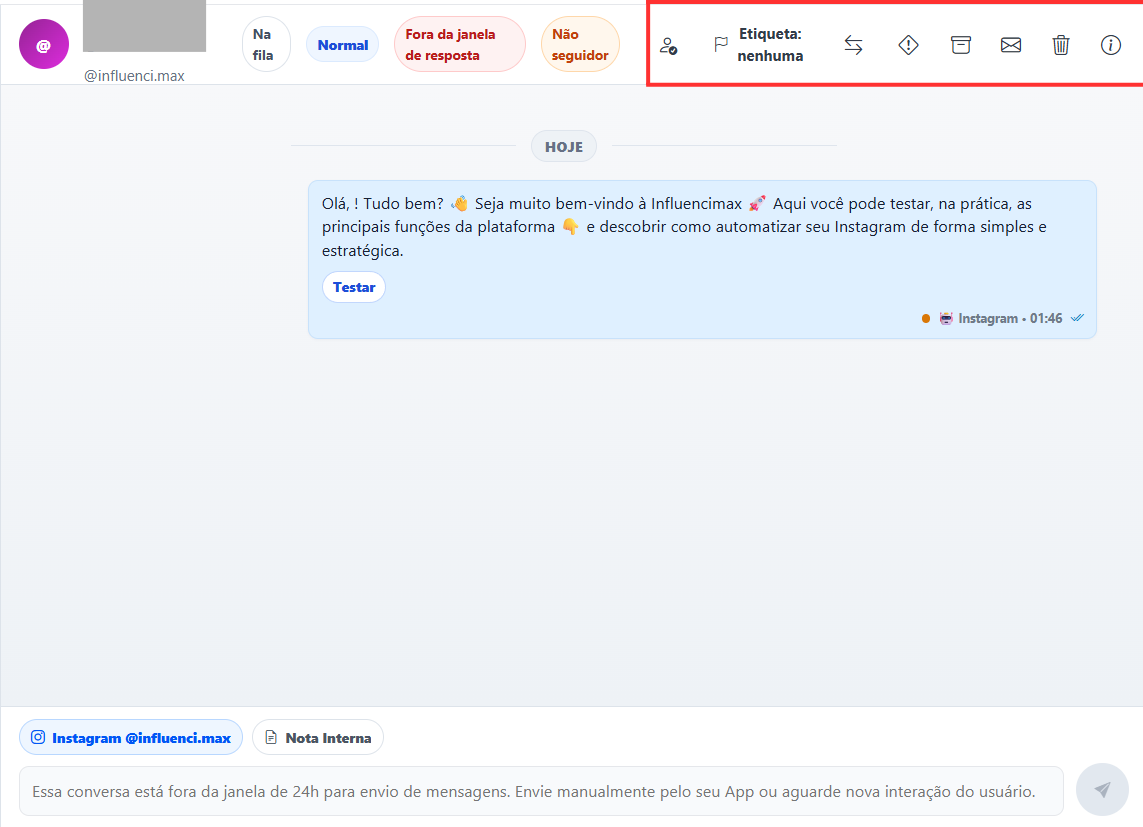
Review the resources used to integrate automation with human support in InfluenciMax. -
Transferring a conversation to human support
When an automation reaches a point where the contact needs to speak with a person, use the Transfer to Support card.
When the flow passes through this card, the conversation can be routed to the corresponding support queue.
This prevents every conversation running through an automation from being sent to human support unnecessarily.
The conversation is sent to Waiting only when the flow actually passes through the transfer card.
-
Adding an Internal Note through automation
The Add Internal Note card records information inside the conversation to help the team that will take over the interaction.
An Internal Note is not a customer-facing message. It provides operational context for the team.
This resource can be used before the transfer to record important information identified during the automated flow.
For example, the automation can register relevant details before routing the contact to an agent.
-
Setting Tag and Priority
The Set Tag/Priority card classifies the conversation while the automation is running.
The flow can add an identifier or set a priority before the contact is handled by a person.
This classification helps organize conversations arriving in Live Chat and gives the team additional context.
-
What happens when an agent accepts the conversation
When human support is accepted, automations related to that conversation are paused.
This prevents the flow from continuing to send messages or perform actions while the agent is speaking directly with the customer.
As a result, automation does not interfere with a conversation that has already been taken over by a person.
-
Reactivating automations
Automations can resume after human support ends or through the manual controls available in the operation.
When the conversation is archived, the platform can reactivate automations according to the conversation state.
The logic also prevents flows that should remain paused from being reactivated incorrectly.
This creates a safer separation between automated and human interaction.
-
Understanding conversation queues
The integration between automations and Live Chat also controls how each conversation is classified.
When there is an active automation session, the conversation can be classified as Chatbot.
The conversation moves to Waiting when the flow actually uses the Transfer to Support card.
When there is no active human interaction and no active automation session, the conversation can return to Archived.
This logic helps accurately represent the current state of each conversation in the support center.
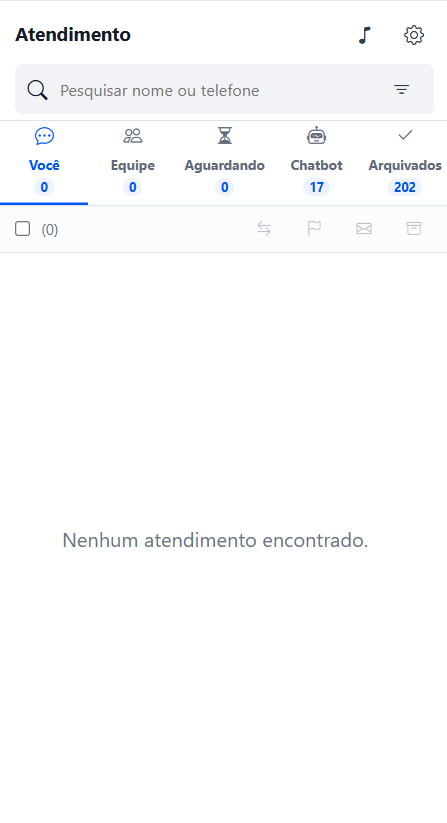
Conversations are organized into queues according to the state of human support and the automation session.
How the integration works in practice
The process can be understood as a sequence between automation and human support.
The contact starts or participates in an automated flow.
While an automation session is active, the conversation can remain classified as Chatbot.
If the flow identifies the need for human intervention and passes through Transfer to Support, the conversation is routed to Waiting.
When an agent accepts the conversation, automations are paused so human support can continue without interference.
After the interaction is finished or archived, automations can be reactivated according to the conversation state and available controls.
If there is no active support interaction and no active automation session, the conversation returns to Archived.
Screenshots
The screenshots in this article have been inserted directly into the corresponding steps above.
If something does not work
The conversation was not sent to Waiting
Check whether the flow actually passed through the Transfer to Support card.
Having an active automation or session alone is not enough to automatically send the conversation to that queue.
The automation continues running during human support
Confirm that the conversation was actually accepted by an agent.
When human support is taken over, the automation related to the conversation should be paused to prevent interference.
The conversation appears in Chatbot
Check whether there is an active automation session.
Conversations with active automated sessions can be classified as Chatbot.
The conversation returned to Archived
Check whether there is an active human interaction or an active automation session.
When neither state is active, the conversation can return to Archived.
The automation did not resume
Check the current conversation state and whether the automation is still paused.
Reactivation can also depend on the interaction ending or the manual controls available in the operation.
Expected result
After configuring the integration between Automation and Live Chat, flows can route contacts to human support when necessary, add internal information, and set tags or priorities during automation.
When an agent takes over a conversation, automations are paused to prevent interference. After the interaction ends, they can be reactivated according to the conversation state.
Conversations are also organized among Chatbot, Waiting, and Archived based on active automation sessions, transfers to support, and active human interactions.
This allows InfluenciMax to maintain an organized transition between automation and human support within the same customer journey.