

Overview
The Live Chat feature in InfluenciMax lets you view and manage Instagram Direct conversations directly from the platform.
In the Live Chat tab, conversations are organized into queues, making it easier to distribute them among agents and track each conversation.
Conversations can be viewed in the following categories:
- You: conversations assigned to you.
- Team: conversations being handled by other team members.
- Waiting: conversations still waiting in the queue for an agent.
- Chatbot: conversations being handled by automations.
- Archived: conversations that have already been archived.
In addition to replying manually through Direct, an agent can take, transfer, prioritize, organize, and archive conversations without leaving InfluenciMax.
Video tutorial
There is no video tutorial available for this article yet.
Before you start
Before using Live Chat, make sure that:
- Your Instagram account is correctly connected to InfluenciMax.
- You have access to the Live Chat tab.
- Instagram Direct conversations are available for the connected account.
It is also important to monitor Instagram's 24-hour messaging window. When available, InfluenciMax shows the remaining time so the agent can track the period in which free-form replies are allowed.
Step by step
- Accessing Live Chat
In InfluenciMax, open the Live Chat tab.
In this area, you can view conversations received through Instagram Direct and follow the available interactions.
Conversations are organized into You, Team, Waiting, Chatbot, and Archived, according to the status of each conversation.
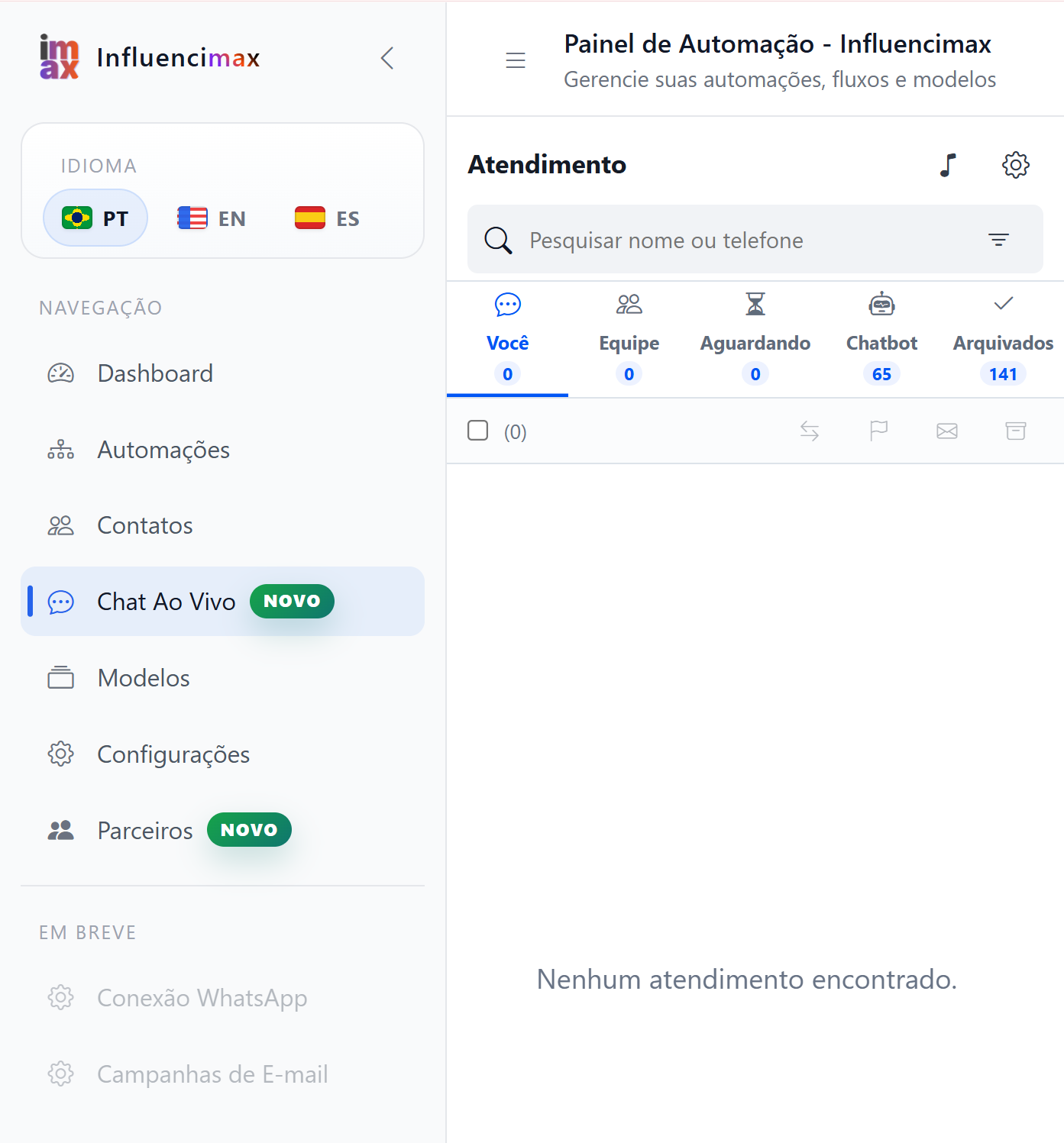
Use the Live Chat queues to view and organize conversations according to the status of each interaction. - Viewing a conversation
Select a conversation to open its message history.
Inside Live Chat, messages are organized chronologically and separated by day, making the conversation history easier to read.
The interface also identifies the origin of messages, distinguishing messages sent by the customer, an automation, or a human agent.
When this information is available, you can also see whether the customer is a follower or non-follower of the profile.
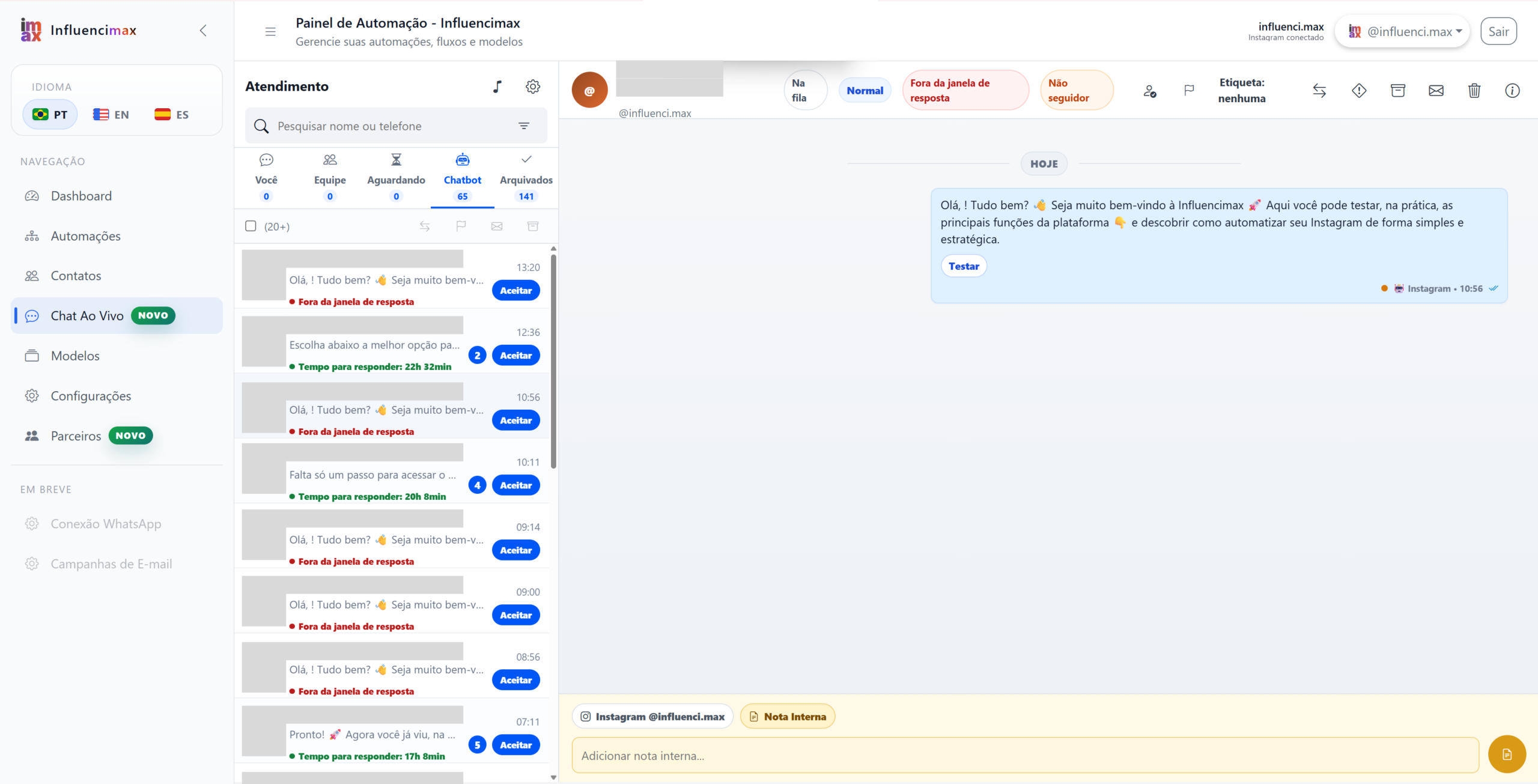
When you open a conversation, you can review its history and identify the source of the messages. - Replying manually through Direct
Inside the conversation, type the message you want to send to the customer.
The reply is sent by the agent through InfluenciMax directly to Instagram Direct.
When the message is sent, it appears immediately in the conversation through the optimistic send bubble, even before final confirmation.
After processing, the interface displays a visual indicator showing whether the message was sent successfully or whether an error occurred.
This lets the agent continue the conversation more quickly without waiting for a full page reload.
- Tracking unread messages
Conversations can display an unread message count, helping identify which ones need attention.
When needed, you can mark a conversation as unread. This action can also be performed in bulk when several conversations need to be reviewed later.
- Taking a conversation
Available conversations may appear in the Waiting queue.
When you want to take one, accept the conversation from the queue. It will then be assigned to the responsible agent, who can continue interacting with the customer.
- Transferring a conversation
When another team member needs to continue the interaction, the conversation can be transferred to another agent.
Use the transfer option and select the agent who should take over. This lets the team redistribute conversations without losing the message history.
- Returning a conversation to Waiting
If a conversation should no longer remain assigned to the current agent, it can be returned to the Waiting queue.
The conversation will then become available for another agent to take.
- Setting priority and labels
To make conversation organization easier, you can use priorities and labels.
These features help identify and organize conversations according to operational needs. A conversation that requires more attention can receive a priority, while labels can help with identification and classification.
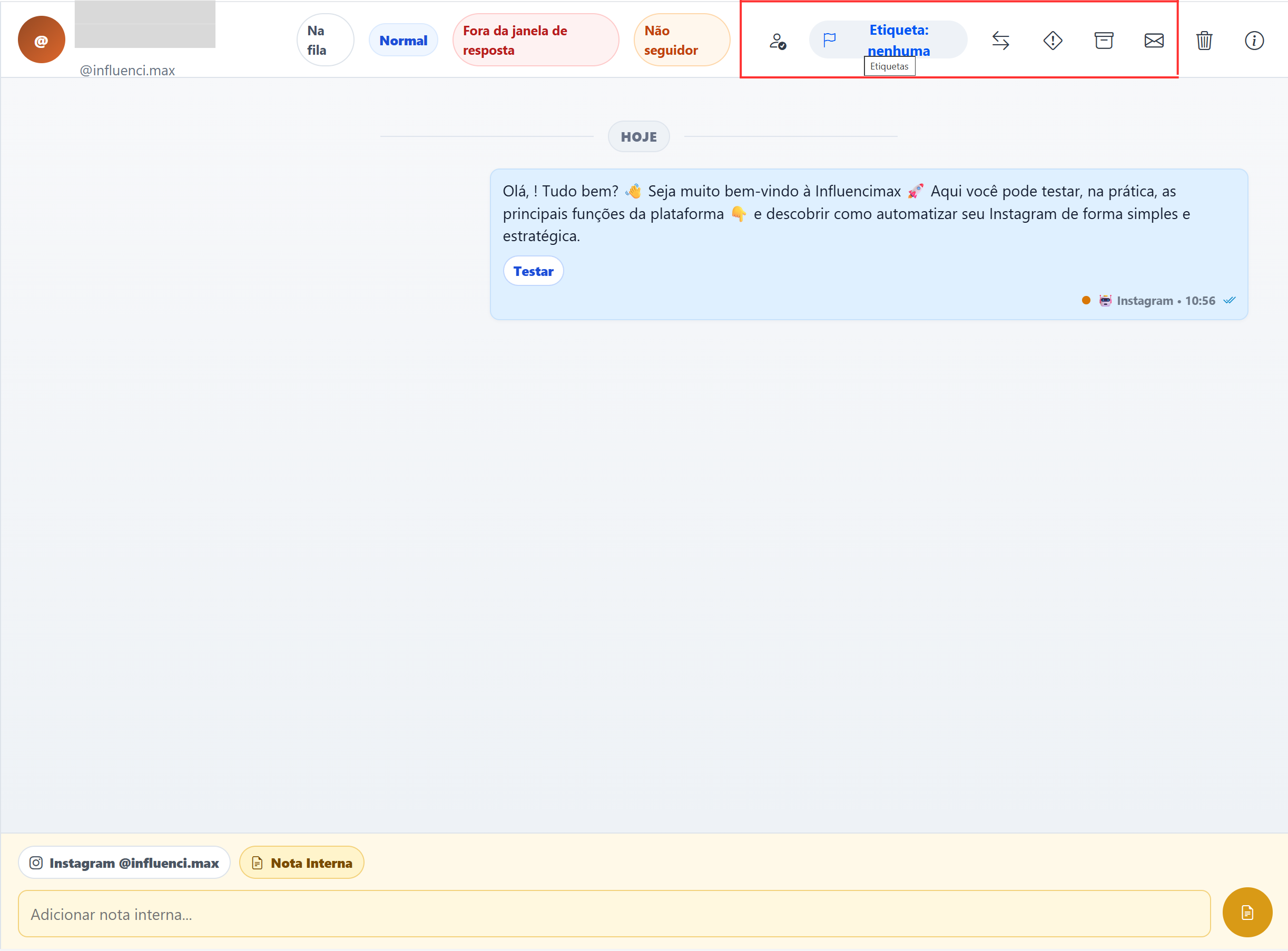
Use priorities and labels to organize conversations and identify interactions that require follow-up. - Monitoring the 24-hour window
During a conversation, InfluenciMax may display the remaining time in Instagram's 24-hour free-form reply window.
This information lets the agent track directly in Live Chat how much time remains in that window.
- Archiving a conversation
When a conversation no longer needs to remain among active interactions, it can be archived.
Archived conversations remain available in the Archived category, helping keep Live Chat organized.
Conversation updates
Live Chat dynamically updates the interface.
This means changes to conversations can appear on the platform without requiring a full page reload.
As a result, agents can continuously follow interactions while using InfluenciMax.
If something does not work
A message shows a sending error
Check the visual indicator shown next to the message. If sending is not completed, the interface will indicate that an error occurred.
Also check the conversation status and the remaining time in the 24-hour window shown by the platform.
I cannot find a conversation
Check the different Live Chat categories: You, Team, Waiting, Chatbot, and Archived. The conversation may be assigned to another queue.
The conversation is assigned to another agent
If you need to change the responsible agent, use the transfer feature.
The conversation can also be returned to Waiting, making it available in the queue again.
There are messages I need to review later
Mark the conversation as unread so it is easier to identify later. When needed, this action can also be performed in bulk.
Expected result
After using Live Chat, your team will be able to monitor and reply to Instagram Direct conversations directly in InfluenciMax.
Conversations can be organized into different queues and distributed among agents, while features such as unread messages, transfers, priorities, labels, archiving, and 24-hour window monitoring help keep the operation organized.
This allows conversations started by customers or initially handled by automations to be followed by the team in the same environment while preserving the history and context of each interaction.