

Overview
After connecting WhatsApp and configuring automations, campaigns, and service, there are additional settings that are important for managing the channel in InfluenciMax.
This article explains how to create and track message templates, monitor costs, allowances, and limits, adjust the plan and number capacity, add capacity, invite team members, define permissions, and disconnect a number when necessary.
These settings complement the other WhatsApp tutorials and help keep the operation organized as it grows.
Video tutorial
Before you start
- have a WhatsApp number connected when the setting depends on an active connection;
- confirm that you have access to the required Settings, Plan, and Users and permissions areas;
- before changing capacity, users, or plan, review the billing preview shown by the platform;
- before disconnecting a number, decide whether its data should be preserved or deleted.
Step by step
WhatsApp message templates
1. Understand when to use a template
Templates are official messages reviewed by Meta and can be used in campaigns, automations, and to start or reopen a conversation outside the 24-hour window.
In InfluenciMax, categories include Marketing for offers, news, re-engagement, and promotional content, and Utility for updates related to a customer request or transaction.
Templates can also contain variables, allowing specific parts of the message to be replaced at send time.
2. Create a template
Open WhatsApp Templates and click Create template.
- Choose the category and language.
- Define a name for the template.
- Configure the header, body, and footer when needed.
- Add the variables that will be personalized.
- Provide examples for those variables.
- Configure buttons if needed.
- Review the preview.
- Submit the template for review.
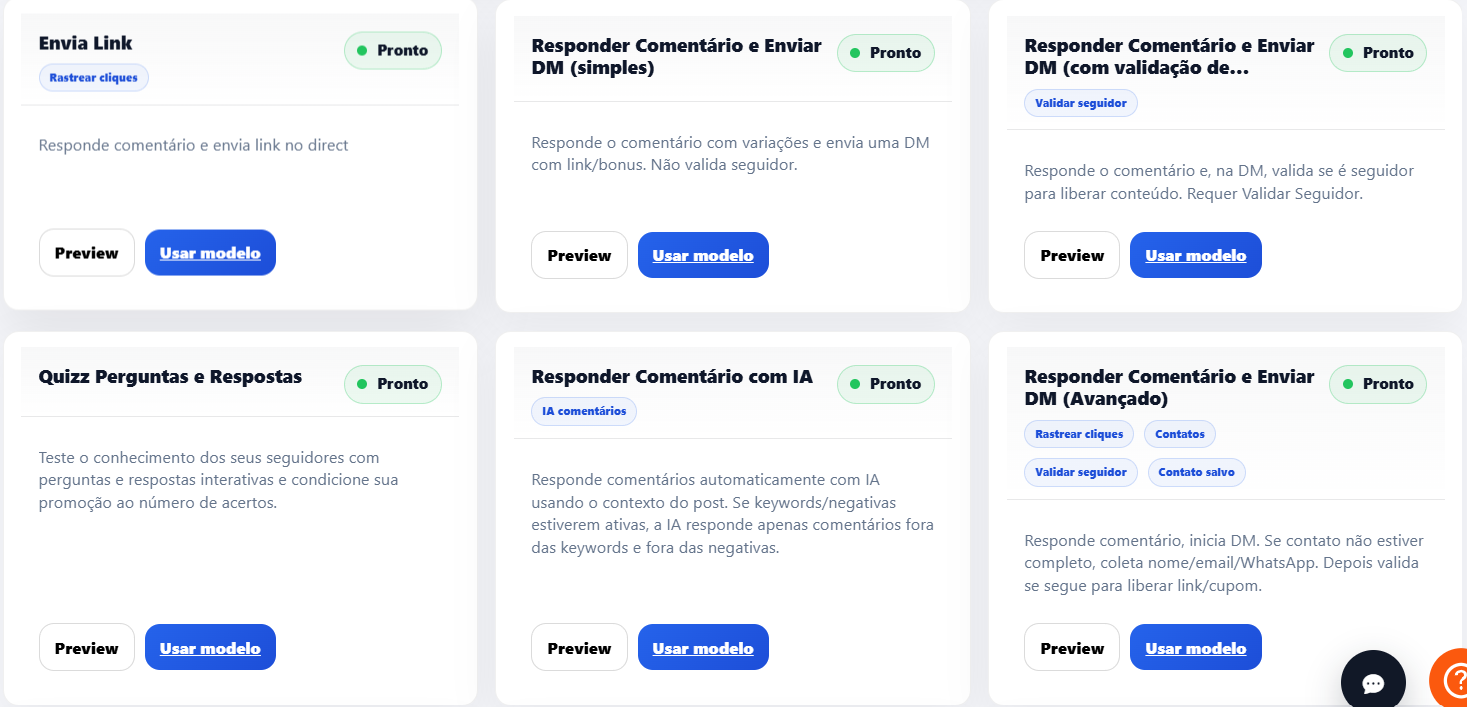
3. Track approval
After submission, track the template status. Use Update status until it appears as Approved. Meta makes the review decision.
If the template is rejected, check the reason shown before trying again.
Once approved, the template can appear as an option in sending cards, campaigns, and active conversation starts through Live Chat.
4. Use pre-approved templates
InfluenciMax also provides access to Meta's library.
- Click View pre-approved templates.
- Choose a template.
- Review its content, language, and purpose.
- Add it to the account when Meta's API allows it.
- Wait for synchronization before using it.
Costs, allowances, and limits
5. Track WhatsApp usage
Open Settings > WhatsApp and locate WhatsApp usage and cost.
This area can show information such as:
- service messages;
- campaign deliveries;
- available credit;
- free messages originating from eligible ads;
- observed cost.
6. Configure limits and alerts
To track operational consumption, you can define internal limits, including a monthly cost limit, service-message limit, alert percentage, email alerts, in-platform alerts, and an optional block on new active sends when the limit is reached.
For example, a company can configure an alert to be notified when it reaches 75% of the defined limit.
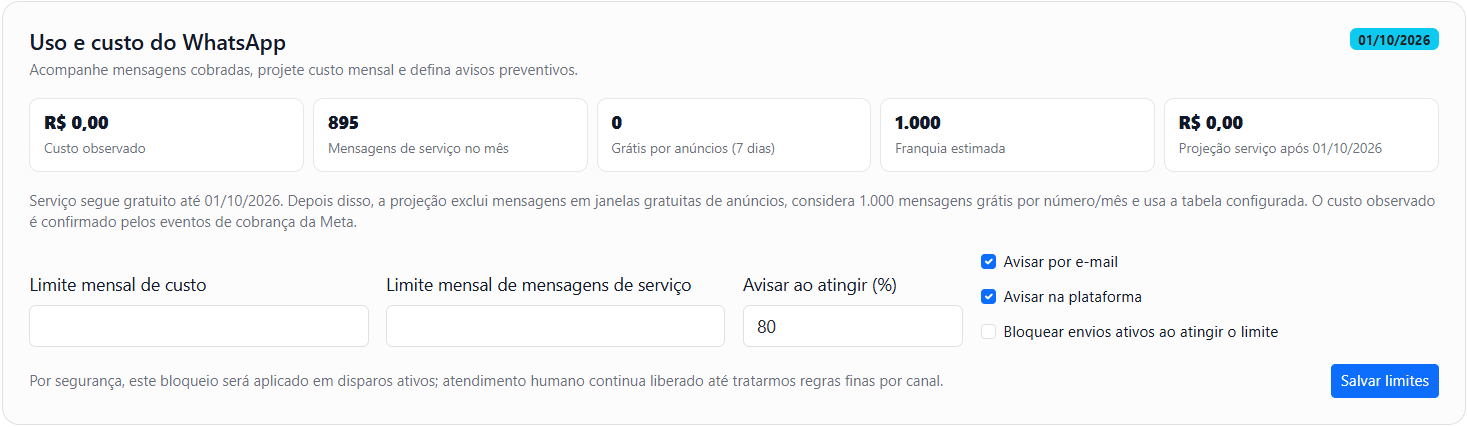
7. Understand the displayed values
For campaigns, the allowance is consumed per delivered message. Meta's final charge depends on factors such as category and the recipient's country, and Meta's invoice remains the final billing reference.
Eligible messages originating from ads during the free window are displayed separately from charged usage.
Managing the WhatsApp plan
8. View or change your plan
Open Settings > Plan and locate the WhatsApp plan family.
Compare the available and unavailable features in each option.
For a new subscription, the process continues to checkout. When a compatible subscription already exists, the platform may show a prorated amount preview before the change.
A WhatsApp plan change affects only the WhatsApp product. The Instagram plan remains active separately.
9. Add or reduce the number capacity
In plan settings, use the quantity control to adjust the number of contracted connections.
- Change the quantity.
- Check the immediate amount.
- Check the total for the next renewal.
- Confirm the change.
For a reduction, you may need to indicate which number will be removed at the end of the cycle.
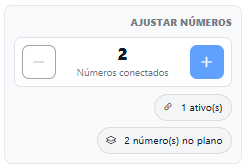
10. Add capacity when needed
In addition to numbers, the operation can be expanded with:
- Campaign credits: one-time purchase; they do not expire and are used after the allowance.
- Additional user: recurring charge with a prorated amount in the current cycle.
- User reduction: scheduled for the next renewal.
Before confirming a change, review the billing preview.
Team and permissions
11. Invite a user
If other team members will use InfluenciMax, open Settings > Users and permissions.
Click Invite user, enter the name and email, and select only the access that person needs.
12. Configure WhatsApp permissions
Access can be defined separately according to the user's role.
Covered areas include:
- Live Chat;
- contacts;
- automations;
- campaigns;
- connections.
For example, an agent can have access to conversations and contacts without necessarily being allowed to connect numbers, delete automations, or manage campaigns.
13. Review team access
After the invitation is accepted, permissions can be changed if the person's role changes.
Older invitations do not automatically receive new WhatsApp scopes. When necessary, the master user must explicitly enable those permissions.
Disconnecting a number
14. Choose whether to preserve or delete data
If you need to remove a WhatsApp connection, open the number card and click Disconnect.
InfluenciMax provides two options:
- Preserve data: ends the connection while keeping conversations, history, and automations available for reference or future use.
- Delete everything: starts removing the operational data linked to the number.
15. Preserving data
If you choose to preserve data:
- conversations and history remain visible;
- automations are paused rather than deleted;
- the account remains available in the selector for reference;
- new sends, campaigns, and automations remain unavailable until a valid connection exists again.
This option is suitable, for example, when a company needs to change a number but wants to keep the previous history.
16. Deleting linked data
If you choose to delete everything, carefully read the items shown before confirming.
The cleanup of conversations, automations, campaigns, and metrics is queued and performed gradually. Once the process is complete, deletion is irreversible.
Screenshots
The screenshots above show, in order, template management, usage and cost monitoring, and WhatsApp capacity adjustment.
If something does not work
The template remains “Under review”
Approval depends on Meta. Wait for the update and use Update status to check again.
The approved template does not appear for use
Synchronize the templates and confirm that it was approved for the same WhatsApp number or business account used in the flow.
I am close to the defined limit
Check WhatsApp usage and cost and review the configured alerts. Depending on the configuration, new active sends can be blocked when the limit is reached.
I added capacity and want to know the amount
Check the preview shown before confirmation. The platform may show the prorated amount and the total for the next renewal.
A team member cannot access a feature
Review the permissions assigned to the user. WhatsApp scopes must be enabled according to the functions that person needs to perform.
I want to change the number without losing history
When disconnecting, choose the option to preserve data. The history will remain available for reference, although the disconnected account cannot make new sends until it has a valid connection.
Expected result
After these settings are configured, your WhatsApp operation will be prepared not only for automations and campaigns but also for ongoing channel administration.
You will be able to create and track templates, monitor costs and limits, adjust plan capacity, control team access, and manage number disconnections when necessary.