

Overview
InfluenciMax WhatsApp campaigns let you organize sends to a defined audience using message templates, variables, and scheduling.
In the campaign flow, you can select contacts, choose the template, map information such as the contact name, and start immediately or schedule the campaign.
This article explains how to prepare a campaign, configure its message, and review the send before starting.
Video tutorial
Before you start
Before creating a campaign:
- have a WhatsApp number connected to InfluenciMax;
- define the audience that should receive the message;
- have a message template available;
- check the information used to personalize the content;
- decide whether to send immediately or schedule the campaign.
If you do not yet have a prepared template, use the template creation and management area. Check whether it is approved or under review before using it.
Step by step
Preparing the message template
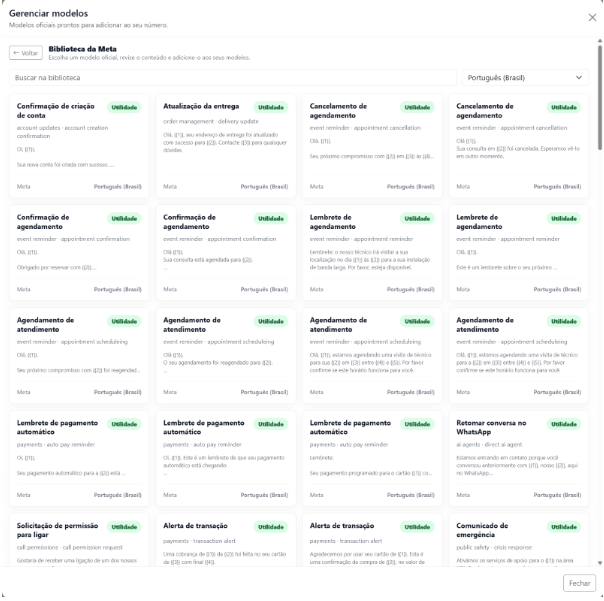
1. Access your WhatsApp templates
Before configuring the send, check the template that will be used and its current status.
2. Configure template content and variables
Configure the message body and use variables when information should change by contact, such as the contact name.
3. Review the template preview
Review the complete preview, including the message content and buttons.
Creating the campaign
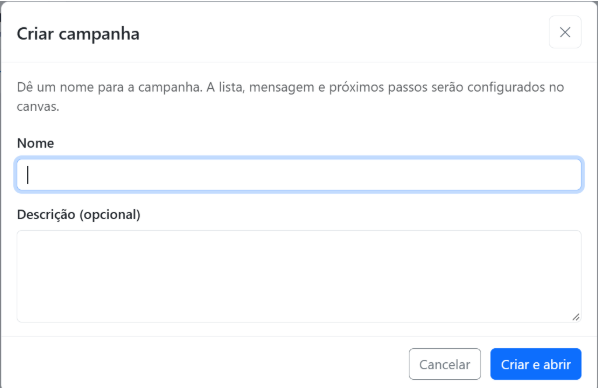
4. Create a campaign and configure the audience
Open the campaigns area, create or edit a WhatsApp campaign, and use the List card to review source, contact count, and a sample.
5. Add the template to the campaign
Add the WhatsApp template to be sent. If it uses variables, define where each value will come from.
6. Map the variables
Associate each template variable with the corresponding campaign information, such as Name, and review all mappings.
Reviewing and starting the campaign
7. Perform the final review
Review the total send, estimated cost, and the Start now and Schedule options before confirming.
8. Choose between starting now or scheduling
Use Start now for an immediate send or Schedule for a later time. Then check the scheduled date, time, and metrics.
Campaigns started by Click-to-WhatsApp ads
In a campaign, you define an audience, choose a template, map variables, and start or schedule the send. In Click-to-WhatsApp, the contact arrives through an ad and enters an automation configured for that trigger.
9. Configure the Click ad trigger
For a Click-to-WhatsApp journey, create the corresponding automation and select Click ad as the trigger.
10. Create the welcome sequence
Configure the first message for contacts coming from the ad and offer options such as Learn about the plans, Talk to sales, and Ask a question.
11. Create different paths for each option
Connect each choice to a different automation step according to the contact's need.
Campaign and Click-to-WhatsApp: what is the difference?
In a campaign, you define an audience, choose a template, map variables, and start or schedule the send. In Click-to-WhatsApp, the contact arrives through an ad and enters an automation configured for that trigger.
Tracking scheduled campaigns
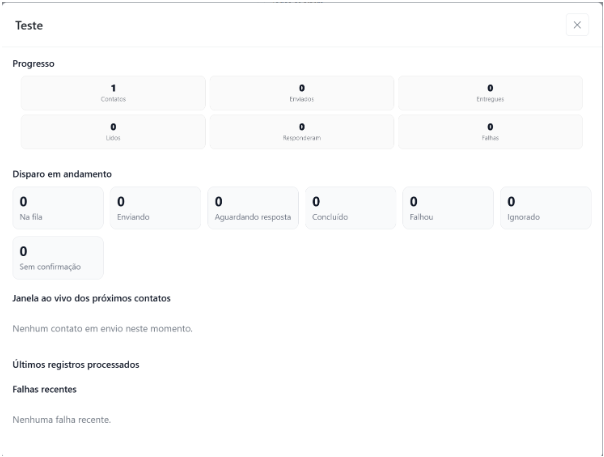
After scheduling, check the campaign listing for the date and time and monitor the available metrics. Use a controlled first run when working with new variables or templates.
Screenshots
Review available templates and their statuses before preparing the campaign. Review campaign creation before continuing to the flow. Track send progress and records.
If something does not work
The template is not ready for use
Check the status shown in the templates area, such as approved or under review.
Message personalization is incorrect
Review the variable mapping and confirm that each variable is associated with the correct information.
The audience does not look correct
Open the List card again and review the source, quantity, and contact sample.
I want to send the campaign later
Use Schedule instead of Start now and check the date and time on the campaign card.
The contact came from an ad but did not enter the expected flow
Check the Click ad trigger and the connections from the initial message options.
Expected result
When finished, the campaign should have a defined audience, selected template, and correctly mapped variables.
You can review the total and estimate shown by the platform and choose to start immediately or schedule the send.
For contacts coming from Click-to-WhatsApp ads, you can also create a dedicated welcome journey with options and branches.