

Overview
InfluenciMax WhatsApp automations let you create flows that start from a contact interaction and continue automatically according to the responses received.
In the editor, you can configure triggers, keywords, messages, buttons, lists, waits, data collection, and variables, connecting each step to build the desired journey.
In this article, you will learn how to structure a basic automation, from choosing the trigger to collecting and reusing information provided by the contact.
Video tutorial
Before you start
- have a WhatsApp number connected to InfluenciMax;
- define the goal of the flow;
- decide which interaction should start the automation;
- organize the main messages and responses that will be part of the journey.
A simple flow can follow this structure: Trigger → Message → Data collection → Next message → End. You can then add new branches as needed.
Step by step
1. Create a new automation
Open the Automations area in InfluenciMax and start creating a new WhatsApp automation.
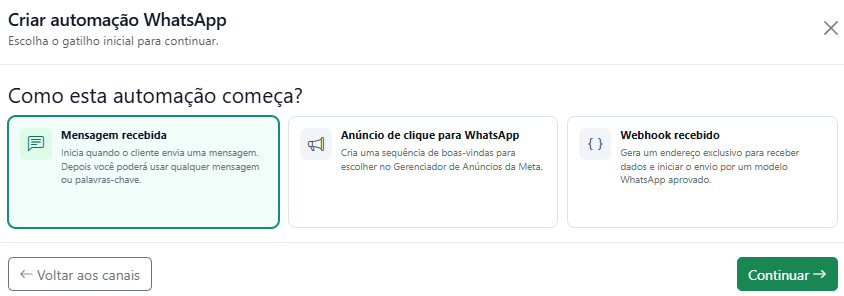
The first step is to define the event that should start the flow. Available triggers covered here include:
- Message received;
- Click ad;
- Webhook.
Choose the trigger according to the journey you want to build.
2. Configure keywords when necessary
In an automation started by a message, you can use keywords to define which messages should trigger the flow.
For example: price, catalog, or I want to know more. Use terms that match the automation goal and messages your contacts may actually send.
3. Add the first message
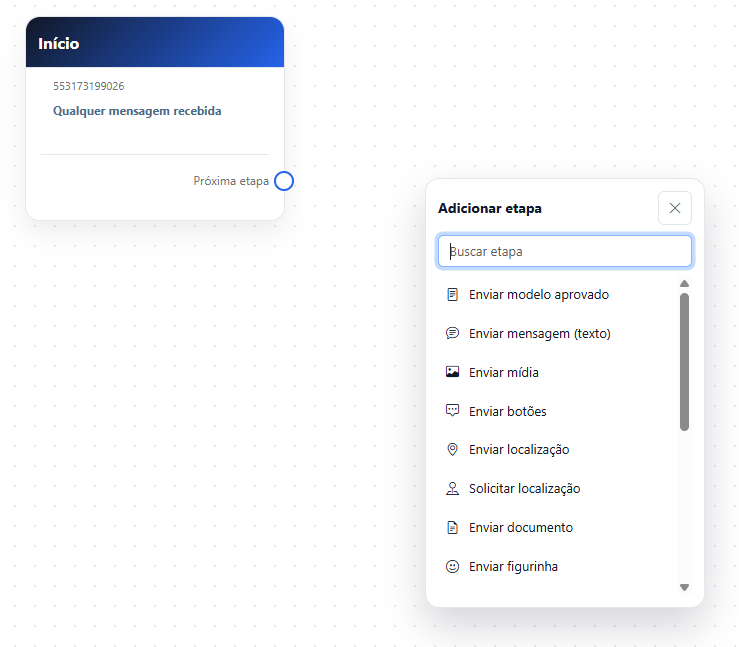
After configuring the trigger, add the message the contact should receive. It can introduce the purpose of the conversation and guide the user on what to do next.
Example: “Hello! How can we help you today?”
From this message, continue the flow with new messages, response options, information collection, or other actions available in the editor.
4. Add options to direct the conversation
When the journey has different possibilities, use buttons and lists to direct the contact to the appropriate path.
For example, I want to learn about the plans can lead to commercial information, while I need support can lead to another automation path.
5. Connect each option to the corresponding path
After configuring the options, connect each output to the step that should run. In an automation with different alternatives, each option can lead to its own sequence.
6. Configure a wait when necessary
Not every message needs to be sent immediately after the previous one. When you need to wait before the next step, use the smart wait, set the desired duration, and connect it to the next action.
The configuration provides a maximum limit of 24 hours for this wait.
7. Add Data collection
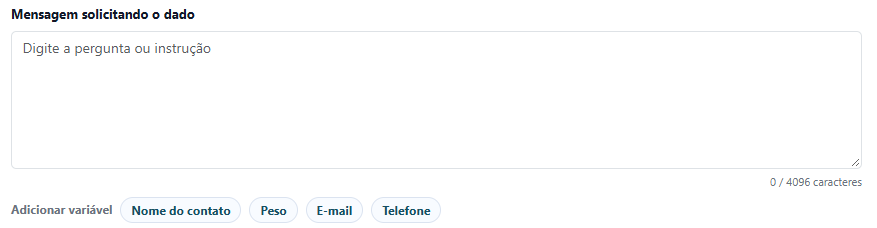
When you need to obtain information during the conversation, add the Data collection card. InfluenciMax provides standard information types and the option to work with custom fields.
8. Configure collection responses
Depending on the requested information, you can offer alternatives for the contact to select. This is useful when you want to limit the possible responses.
Example: “What would you like to discuss?”
- Learn about the plans;
- Talk to sales;
- Ask a question.
After the choice, the automation can continue using the provided response.
9. Reuse collected information
Data obtained during the automation can be used later in messages. The editor provides shortcuts for inserting previously collected information, including data such as Name and custom fields.
This allows the rest of the conversation to be personalized according to the information provided by the contact.
10. Review the connections on the canvas
After configuring the steps, review the automation as a complete flow. A basic structure can contain: Trigger → Message → Collection → Message → End.
Automation example
- The contact sends a message configured as a keyword.
- The automation replies: “Hello! Great to talk to you. What are you looking for?”
- The options Learn about the plans, Talk to sales, and Ask a question are presented.
- The automation uses Data collection to record the selected option.
- In the next message, the collected information can be reused to continue the journey.
From that point, each option can be connected to new steps according to the automation goal.
What about the other triggers?
In addition to a received message, the editor also supports automations started by a Click ad and Webhook. These triggers enable journeys that differ from the basic automation presented here and can be used in more advanced flows and campaigns.
Screenshots
The screenshots above show trigger selection, the steps available for building the automation, and the flow review on the canvas.
If something does not work
The automation does not start
Check the selected trigger and, when using keywords, review the configured terms. Also confirm that the flow is connected from the trigger.
An option does not lead to the next step
Open the canvas and check whether the corresponding output is connected to the correct card.
Data collection does not continue as expected
Review the options configured in the Data collection card and also check the path used when there is no response.
The variable does not appear in the message
Confirm that the data was collected in an earlier step.
The wait is longer than allowed
Review the configured duration. Smart wait has a maximum limit of 24 hours.
Expected result
When finished, you will have a WhatsApp automation structured in InfluenciMax, starting with a trigger and following the steps defined on the canvas.
The flow can combine messages, keywords, buttons, lists, waits, data collection, and variables, creating different paths according to the contact's interaction.
After mastering this basic structure, you can move on to more advanced features such as Artificial Intelligence and Webhooks.