

Visão geral
A aba de Automações é o seu centro de comando. Nela, você visualiza tudo o que está rodando no seu perfil em formato de cards, enquanto a Galeria de Modelos serve como uma biblioteca de estratégias prontas para uso imediato.
Vídeo tutorial
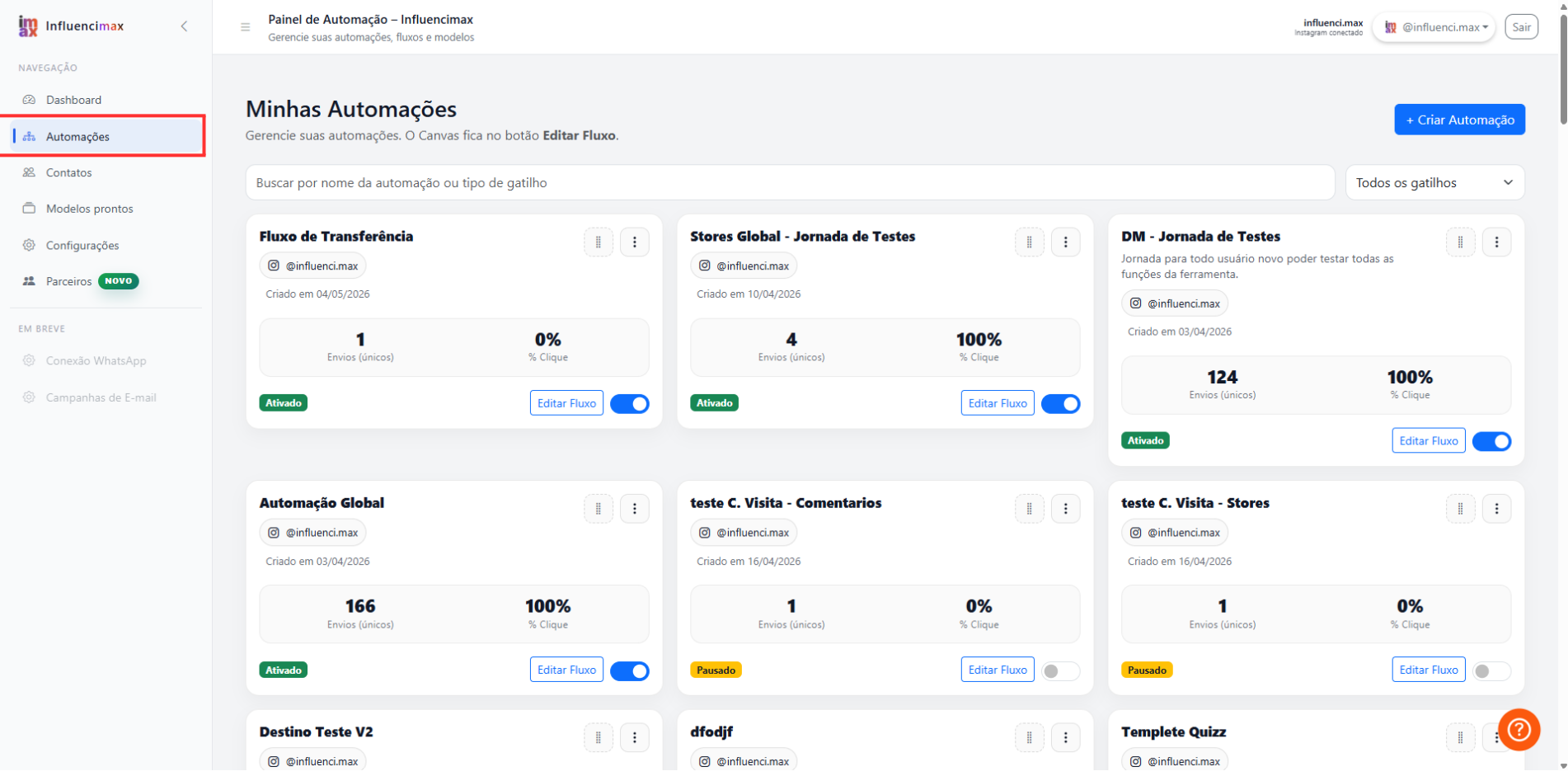
Antes de começar
- Acesse sua conta da InfluenciMax e confirme que está no perfil correto.
- Tenha em mente se você quer analisar uma automação já criada ou iniciar uma nova estratégia a partir de um modelo.
Passo a passo
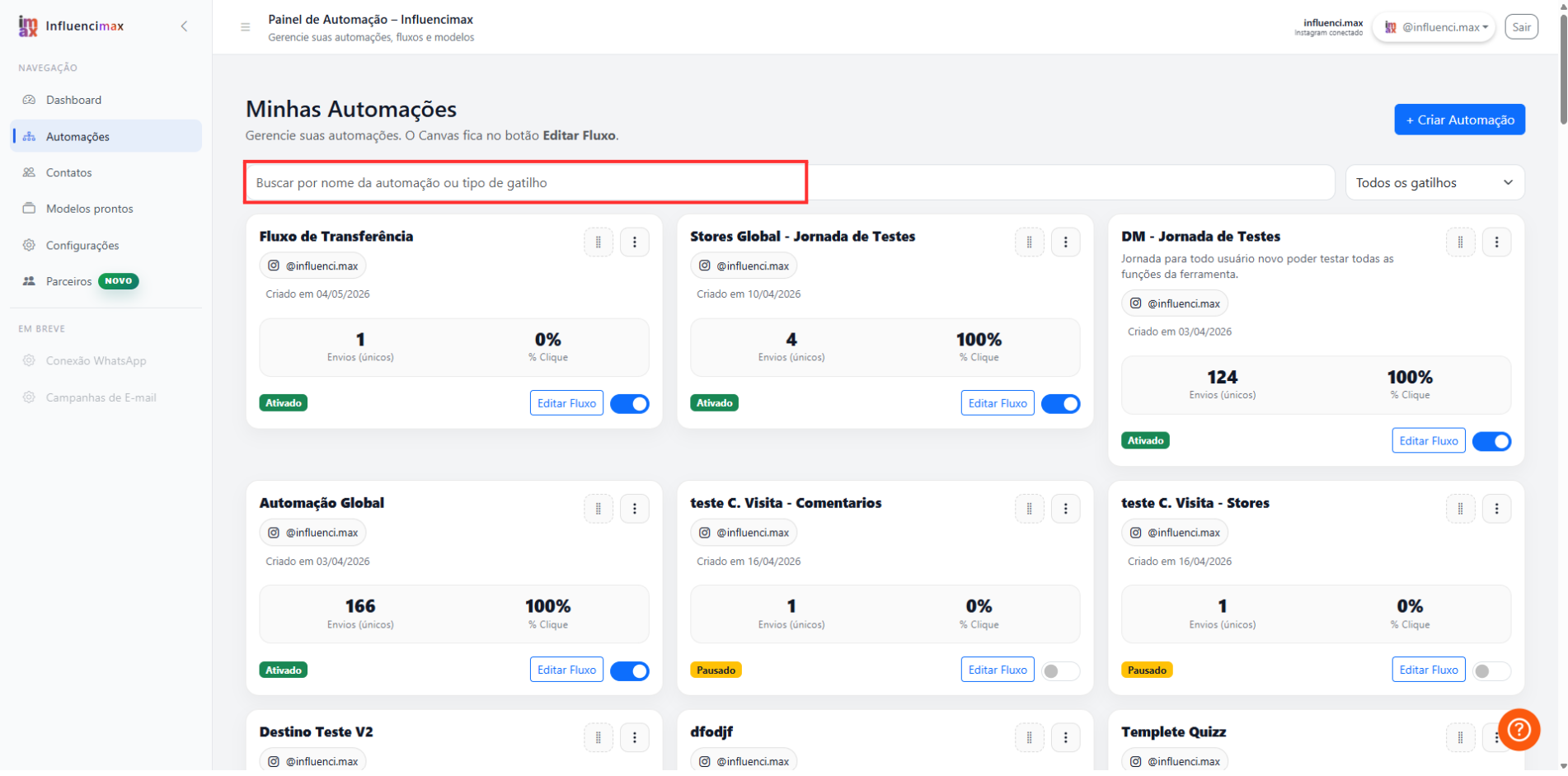
- Entendendo os Cards: Cada automação criada aparece como um card. Nele você vê o nome que deu ao fluxo e se ele está ativo ou não. É a forma mais rápida de ter um panorama das suas campanhas.
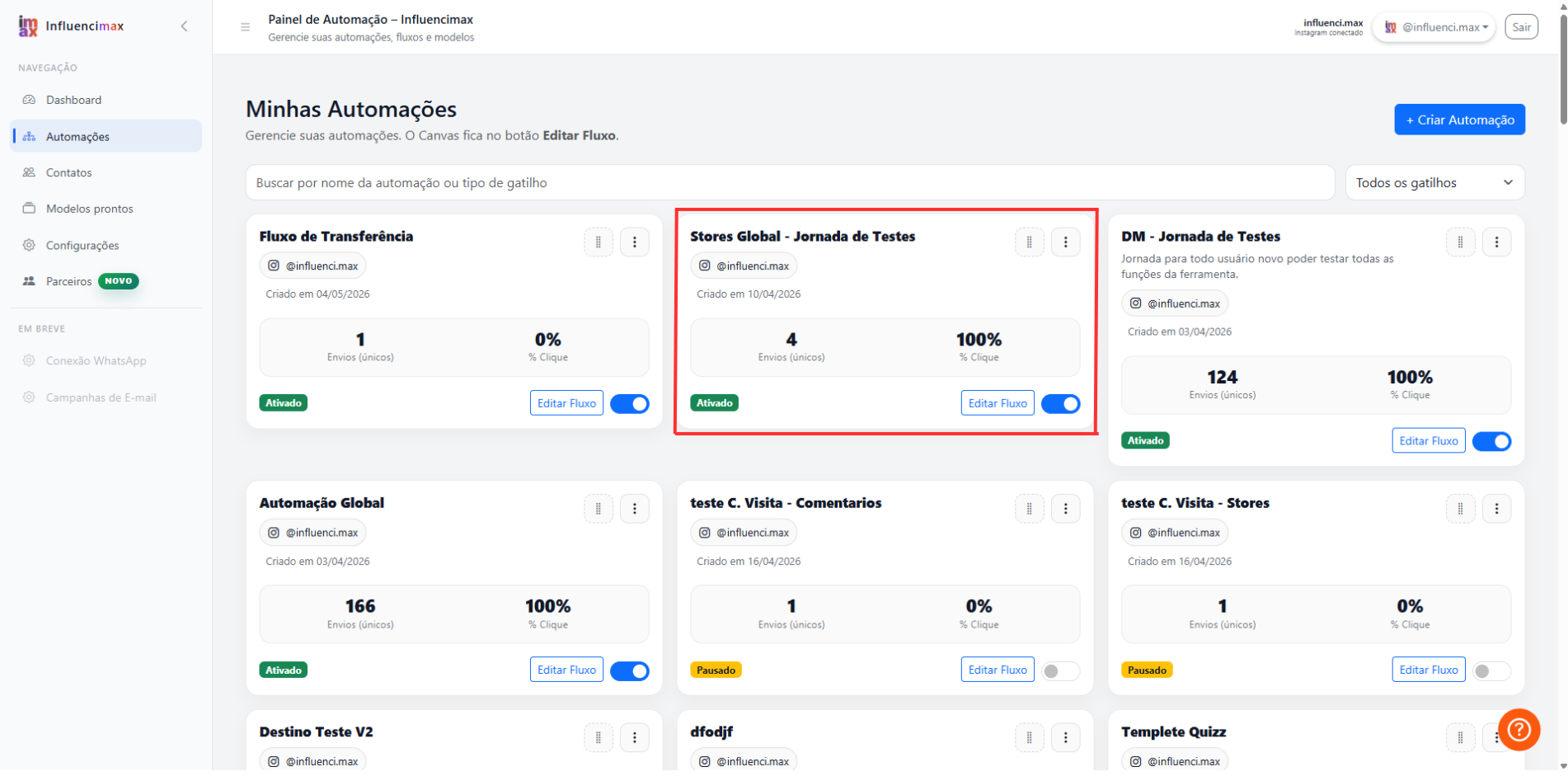
- Monitorando Cliques: Dentro de cada card, a InfluenciMax mostra o volume de cliques únicos (usuários diferentes) e cliques válidos (total de cliques). Isso é essencial para saber se o seu link de vendas está sendo acessado.
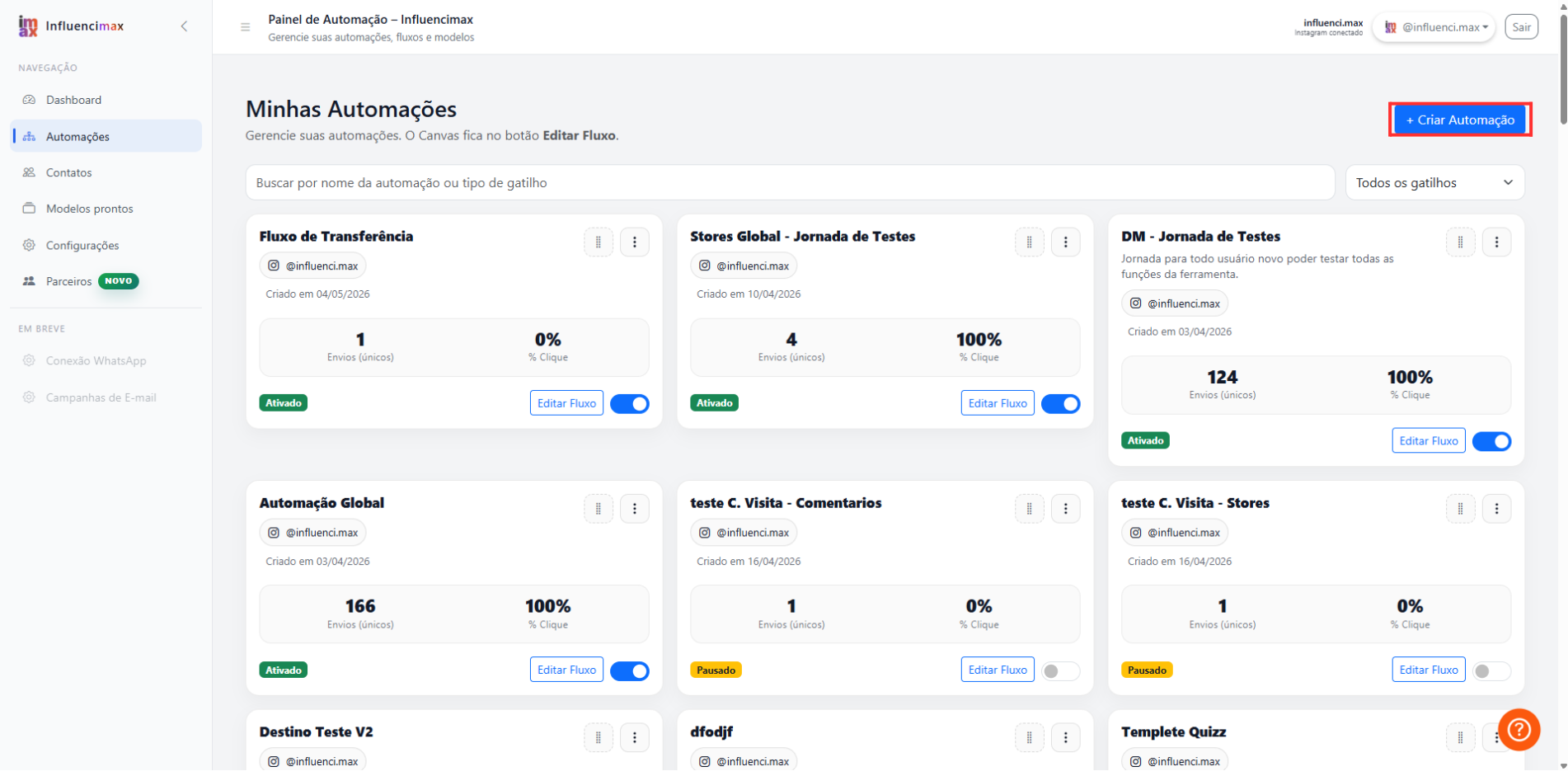
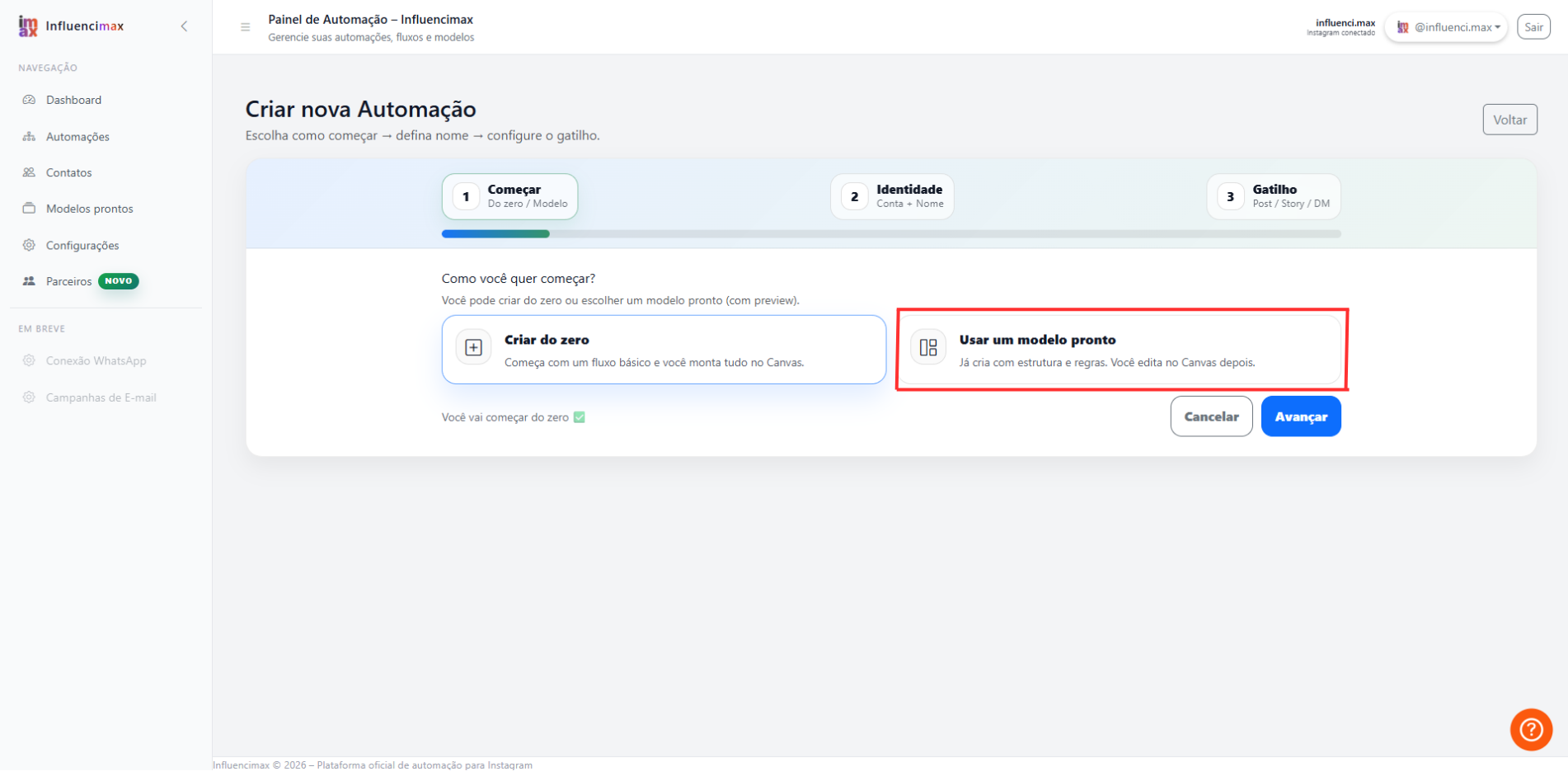
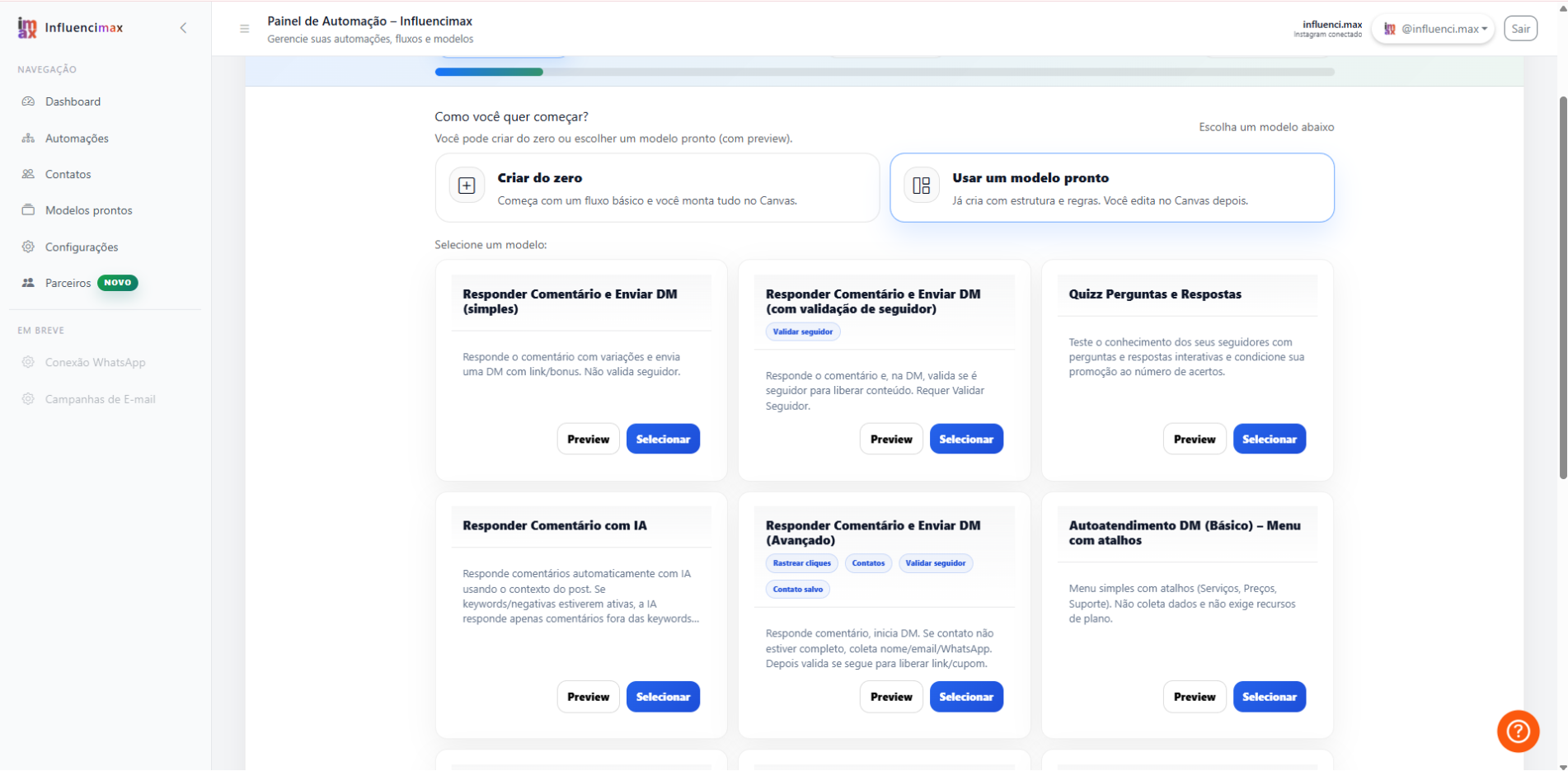
- Usando a Galeria: Se não quiser começar do zero, a aba de Modelos oferece filtros por categorias. Você escolhe o objetivo, como vendas, visualiza o fluxo e, se gostar, clica em Usar Modelo para editá-lo com seus dados.
- Localização Rápida: Conforme sua conta cresce, você terá muitas automações. Use a barra de pesquisa no topo para encontrar rapidamente o fluxo que deseja editar ou analisar.
Capturas de tela
As capturas de tela deste artigo foram posicionadas diretamente ao lado das etapas correspondentes, para facilitar a comparação entre a instrução e a tela da plataforma.
Se algo não funcionar
- Diferença entre Modelos e Automações: Lembre-se que a aba Modelos é apenas uma vitrine. Para editar ou ver o resultado de algo que você já instalou, você deve sempre ir na aba Automações.
- Métricas Zeradas: Se uma automação acabou de ser ligada, os números podem demorar alguns minutos para atualizar conforme as primeiras pessoas interagem.
Resultado esperado
Ao finalizar, você terá uma gestão simplificada e ágil, permitindo ativar e monitorar múltiplas estratégias de venda sem confusão.