

Overview
After connecting WhatsApp and configuring your automations, InfluenciMax also lets you track conversations that require human support and view contact information in one place.
In Live Chat, your team can view conversations, monitor the service window, and start a new contact using a template when necessary. A conversation can also be transferred to a queue, a specific agent, or another compatible automation.
In Contacts, Instagram and WhatsApp remain identified separately, but they can appear linked to the same customer record.
This article explains how these features work together.
Video tutorial
Before you start
- have a WhatsApp number connected to InfluenciMax;
- have contacts available on the platform;
- if you use transfers, define in advance where conversations should be routed;
- to start certain WhatsApp conversations, have a template available for use.
Step by step
Handling conversations in Live Chat
1. Open Live Chat
Open InfluenciMax Live Chat to view the available conversations.
When you select a WhatsApp conversation, you can follow the exchange and identify the channel and number associated with that contact.
When the conversation is inside the service window, the interface also shows the remaining time.
Understanding the 24-hour window
2. Check the conversation status
Live Chat distinguishes conversations that are inside and outside the 24-hour window.
When the conversation is inside the window, the interface shows the remaining time.
When it is outside the window, the conversation displays the “Outside the 24h window” notice and provides the action related to sending a template.
This lets you quickly identify the conversation status before continuing service.
3. Handle a conversation outside the window
When the contact is outside the 24-hour window, the conversation itself indicates this status.
In this case, use an approved template to contact the person.
Starting a service conversation
4. Start a new conversation
Live Chat also provides an option to start a service interaction.
When using the + button, configure the required information, such as:
- contact;
- phone;
- origin number;
- template.
Select this information correctly before starting.
Transferring a conversation
5. Transfer service to your team
When a conversation needs to be routed to another person, use the service transfer option.
The available human service destinations covered in the source are:
- Waiting queue;
- Specific agent.
Choose the destination according to your operation.
6. Transfer to another automation
In addition to human transfer, you can select another WhatsApp automation as the destination.
The list considers compatible automations for the same number. Use this when a conversation needs to continue in another flow.
Example: Initial automation → need identified → transfer → specific automation.
7. Track transfers
The interface also provides a transfer metric directly on the automation card. The counter helps identify this movement within the flow.
Using quick service
8. Track the queue outside the inbox
InfluenciMax also has a service widget that lets you view queue information outside the main Live Chat screen.
The compact view shows queue categories and information related to the service window.
9. Work with more than one conversation
The widget lets you keep more than one conversation accessible in reduced windows while navigating other areas of the platform.
10. Use quick replies
Inside the reduced window, use the quick-reply menu accessed with / to view available responses during service.
Managing your contacts
11. Open the contact list
In Contacts, you can view the records available in InfluenciMax.
Instagram and WhatsApp channels remain identified separately, along with controls related to automations for each channel.
12. View and edit contact information
When you open a contact, the screen shows its individual data.
Fields may initially appear locked. Use the corresponding edit icon to unlock only the data that needs to be changed.
Linked channels
13. View the channels related to the contact
The same record can have different linked origins.
On the contact screen, you can view:
- linked channels or origins;
- interactions;
- a shortcut to service.
This lets you view the channels associated with the record without necessarily treating every interaction as a completely separate contact.
Example journey
A journey involving human service can follow this sequence:
- The contact enters an automation.
- The flow identifies that human service is required.
- The conversation is transferred to the Waiting queue or a specific agent.
- The team continues the conversation in Live Chat.
- Later, the contact's data and linked channels can be viewed in Contacts.
Another option is to transfer the conversation to a compatible automation for the same number when human service is not required.
Screenshots
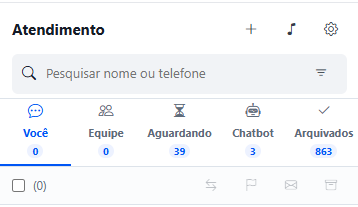
The screenshot included in the step-by-step section shows Live Chat and serves as a reference for locating conversations and service queues.
If something does not work
I cannot continue the conversation normally
Check whether the conversation is inside the 24-hour window. When it is outside, the interface displays the corresponding notice and the option related to sending an approved template.
I cannot find the automation for transfer
Check whether the destination automation is compatible with the same number.
I want to route the conversation to a person
Use the service transfer option and select Waiting queue or Specific agent as needed.
I cannot edit contact information
On the edit screen, use the icon corresponding to the data you want to change to unlock editing.
Instagram and WhatsApp appear under the same contact
This can happen when channels are linked to the same record. Check the linked origins to see which channels are associated with the contact.
Expected result
When finished, your team will be able to use Live Chat to track WhatsApp conversations, identify the 24-hour window status, start service interactions, and transfer contacts to queues, agents, or other compatible automations.
In Contacts, you will be able to view customer information, edit data when necessary, and see the channels linked to the same record.