

Overview
After creating the basic structure of a WhatsApp automation, you can use more advanced features to make the conversation more dynamic and connect InfluenciMax to other systems.
These features include Artificial Intelligence, which can conduct conversations and collect information, and Webhooks, which can receive or send data between InfluenciMax and external systems.
The editor also lets you configure contextual media for AI and create different paths for successful or failed Webhook integrations.
In this article, you will learn how these features can be used in your WhatsApp automations.
Video tutorial
Before you start
Before building an advanced automation:
- have a WhatsApp number connected;
- create the main automation structure;
- define the goal of the conversation;
- identify which information needs to be collected;
- if you use a Webhook, have the address and required integration information available.
For AI automations, also define in advance what role Artificial Intelligence should play in the conversation.
Step by step
Configuring Artificial Intelligence
1. Add AI to the flow
In the WhatsApp automation editor, add the AI feature at the point where Artificial Intelligence should take over the conversation.
The guided configuration lets you define information that helps guide AI behavior, including the interaction goal and examples of expected responses.
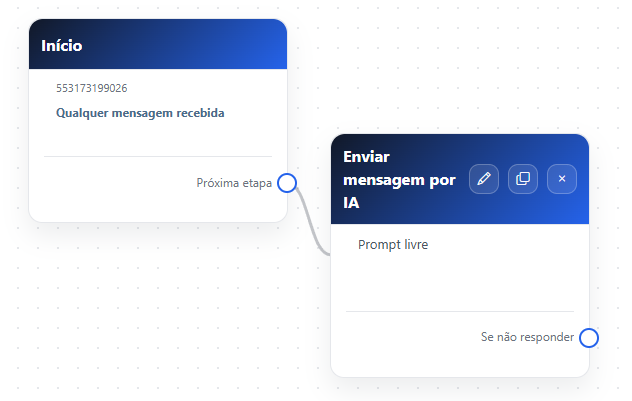
2. Clearly define the AI goal
When configuring AI, describe what it should do during the conversation.
Instead of giving overly generic instructions, set a clear goal for that automation.
For example: “Identify the contact's interest and collect the information needed to continue the service.”
The examples provided during configuration can also help guide how AI should respond.
Collecting data with AI
3. Choose which information should be collected
AI can be configured to collect information during the conversation itself.
Supported data covered in the source include:
- name;
- email;
- custom field.
Choose only the data required for the automation goal.
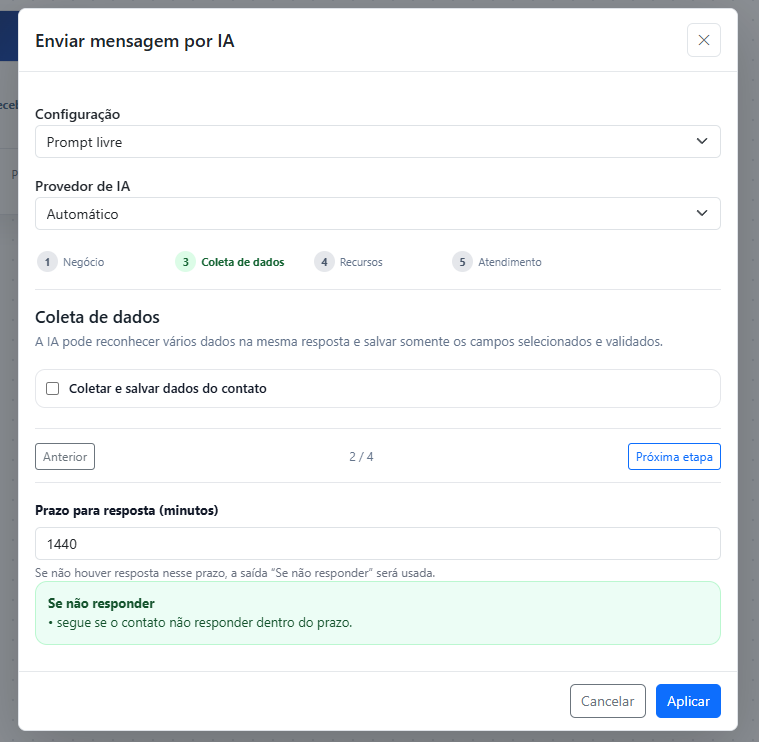
4. Use the data later in the journey
After information is obtained during the conversation, it can be used in later automation steps.
When planning the flow, consider which data will actually be useful later.
For example, AI can conduct the conversation to identify a contact's need and record that information so the journey can continue with more context.
Using contextual media
5. Add media to the AI configuration
You can also configure media to be used during the conversation conducted by Artificial Intelligence.
The configuration includes a media list with thumbnail, usage condition, and removal option.
6. Explain when each media item should be used
Contextual media should be associated with a specific conversation situation.
For example, if an image should be sent when the contact shows interest in a certain topic, that condition should be clear in the configuration.
This makes the media part of the conversation logic instead of sending it without context.
Working with Webhooks
Webhooks let you connect the automation to external systems.
There are two different uses:
- Incoming Webhook: external information reaches InfluenciMax and can start an automation.
- Outgoing Webhook: InfluenciMax sends automation information to an external system.
Incoming Webhook
7. Use a Webhook as a trigger
When creating a WhatsApp automation, Webhook appears among the available triggers.
With this option, the automation can start from information received externally.
Initially, the Webhook can appear without a received payload and provide its corresponding URL with an option to copy it.
8. Send a test to identify the information
After a fictitious payload is received, the identified fields can appear in the configuration for selection.
This lets you view the available information and define which fields will be used by the automation.
9. Connect the trigger to the first step
After configuring the incoming Webhook, connect the trigger to the step that should start the WhatsApp interaction.
One example is connecting the Webhook directly to an approved template.
Outgoing Webhook
10. Add Webhook sending to the flow
In another scenario, the automation may need to send information to an external system.
Use Send Webhook at the appropriate point in the journey.
The simplified mode lets you build the payload using field-and-variable pairs.
11. Use automation data in the send
The values used in the Webhook can come from information available in the automation.
For example, if you previously collected a name, email, or another data point, that information can be included in the payload sent to the external system.
A structure can follow this logic: Message → Data collection → Send Webhook.
This way, the data is obtained before it is sent to the integration.
12. Test the integration
Before using the Webhook in the final flow, run the test available in the configuration.
A successful response can be shown with status 200 and a fictitious response.
This test helps verify whether the external system is receiving and responding to the request as expected.
13. Configure success and failure paths
The Webhook card has different paths according to the send result:
- Success: continue the automation.
- Failure: direct the flow to a message or another path prepared for that situation.
Connect each output to the appropriate behavior so the flow does not stop without a next step.
Advanced automation example
- The contact starts a WhatsApp conversation.
- AI conducts the interaction.
- During the conversation, AI collects the required information.
- When the defined situation occurs, contextual media can be used.
- The collected data can proceed to a Send Webhook step.
- The external system receives the information.
- The automation continues through the success or failure path according to the integration result.
This structure combines conversation and integration within the same flow.
Data and screenshot precautions
When documenting or testing these integrations, do not use unnecessary real data.
Mask or replace:
- real people's phone numbers, emails, names, and photos;
- access tokens and verify tokens;
- PINs and verification codes;
- the complete incoming Webhook URL;
- account and business identifiers;
- real payloads, protocols, and orders.
Screenshots
The screenshots above show AI configuration in the flow and the data collection step. Use them as a reference when configuring these features.
If something does not work
AI is not conducting the conversation as expected
Review the goal and examples defined in the guided configuration. The instructions should clearly represent the expected behavior for that automation.
AI does not collect required information
Check the data selected in the AI collection configuration.
Media appears in the wrong context
Review the condition defined for using that media.
The incoming Webhook still does not show fields
Send a test with fictitious data so the received information can be identified in the configuration.
The outgoing Webhook returns an error
Review the configured endpoint and the fields being sent. Use the configuration test to verify the response before using the integration in the flow.
The automation stops after a Webhook failure
Check whether the failure output is connected to a next step. The feature provides separate success and failure paths.
Expected result
When finished, your automation can use Artificial Intelligence to conduct conversations, collect information, and use contextual media, while also exchanging data with external systems through Webhooks.
With an incoming Webhook, an external integration can provide information used at the start of the automation. With Send Webhook, data available in the flow can be sent to another system and then continue through success or failure paths.
This allows you to create more complete WhatsApp journeys in InfluenciMax by combining automated conversation, information collection, and external integrations.