

Overview
To use InfluenciMax WhatsApp features, the first step is to connect the number that will be used on the platform.
InfluenciMax provides two connection options covered in this guide: Cloud API and Coexistence. After configuration, the connected number becomes available in the settings area, identified by its nickname, platform, and connection status.
In this article, you will learn where to start the connection, how to choose the appropriate option, and how to confirm that WhatsApp is active in InfluenciMax.
Video tutorial
Before you start
Before configuring the connection, make sure you have access to the information and accounts required to connect the WhatsApp number you will use.
Complete the process using the correct account and number, especially if your business uses more than one WhatsApp number.
Important: this tutorial covers the steps documented inside InfluenciMax. Any additional authorization steps that appear during the process should be completed as presented by the platform.
Step by step
1. Access WhatsApp settings
Log in to InfluenciMax and open Settings.
Find the WhatsApp section. There you will see information about numbers already registered and the option to add a new connection.
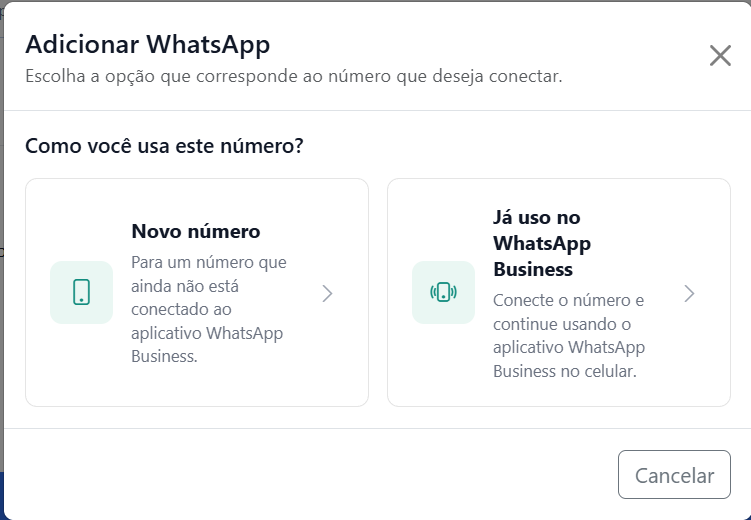
Click Add WhatsApp to begin.
2. Choose the connection type
After starting the setup, InfluenciMax will show the available options for connecting WhatsApp.
There are two options:
- Cloud API: connects the number using the Cloud API.
- Coexistence: connects the WhatsApp Business number used on the mobile phone.
Choose the option that matches how you want to use the number.
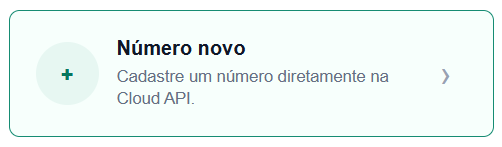
3. Connect using Cloud API
To use Cloud API, select this option during the connection process and continue with the steps shown by the platform.
4. Confirm that the Cloud API number is active
After completing the connection, return to the WhatsApp section in Settings.
The number should appear in its own card, where you can identify information such as its nickname, platform, and available actions.
Also confirm that the connection is active before using the number with other InfluenciMax features.
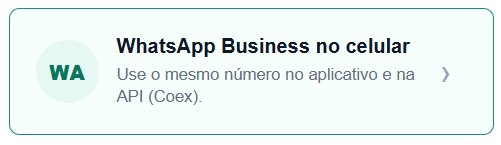
5. Connect using Coexistence
If you want to use Coexistence, start again from Add WhatsApp and choose the option corresponding to WhatsApp Business used on the mobile phone.
Continue the setup according to the steps shown by the platform.
6. Confirm the Coexistence connection
After completing the process, return to the WhatsApp settings section.
The number should appear identified as a Coexistence connection with an active status.
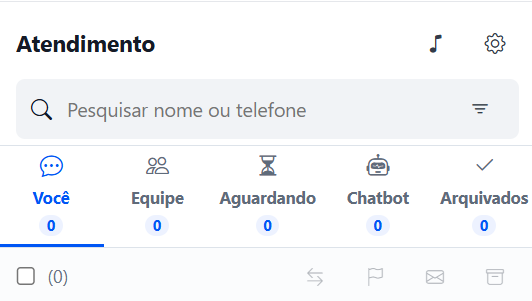
7. Review available history with Coexistence
With Coexistence, available history can appear in the Live Chat service context together with the channel and number identification.
8. Identify your connected numbers
After configuration, WhatsApp numbers can be identified in InfluenciMax by information such as their nickname and platform type.
Using clear nicknames is especially useful when your operation works with more than one number.
9. Use the number with other features
Once the number is connected and active, it can be used with other InfluenciMax WhatsApp features, such as automations, campaigns, and customer service.
Screenshots
The screenshots above show the beginning of the connection process, the connection type selection, and confirmation of connected numbers. Use them as a reference during setup.
If something does not work
The number does not appear as active
Return to the WhatsApp section in Settings and check the status shown on the connection card. If the process has not been completed, finish the steps indicated by the platform before trying to use the number.
I chose the wrong connection type
Return to the configuration area before continuing to use the number and confirm whether the connection was made using the desired option: Cloud API or Coexistence.
I do not know which connection is configured
Check the number card in the WhatsApp section and review the platform identified for the connection.
The number is connected, but I cannot find it in another area
First confirm that the account is active. If your operation uses different accounts, also check which account is selected before continuing.
Expected result
When finished, your WhatsApp number should appear in the InfluenciMax settings area with its connection identified and active.
Depending on the selected configuration, the number will be connected through Cloud API or Coexistence.