

Overview
The InfluenciMax Live Chat interface was designed to make it easier to manage Instagram Direct conversations within the platform.
The page uses a structure similar to a professional customer service center, allowing agents to view conversations, identify new messages, access important actions, and reply to contacts without leaving the screen.
The interface is also organized to make better use of the available space and simplify the routine of people who handle several conversations throughout the day.
Available features include visual conversation organization, quick actions in the header, tags, priorities, Internal Notes, and sound alerts for new messages.
Video tutorial
There is no video tutorial available for this article yet.
Before you start
Before using Live Chat, make sure that:
- Your Instagram account is correctly connected to InfluenciMax.
- You have access to Live Chat.
- The account you want to use is correctly selected.
The availability of certain actions may also depend on the permissions assigned to your user.
Step by step
1. Getting to know the Live Chat interface
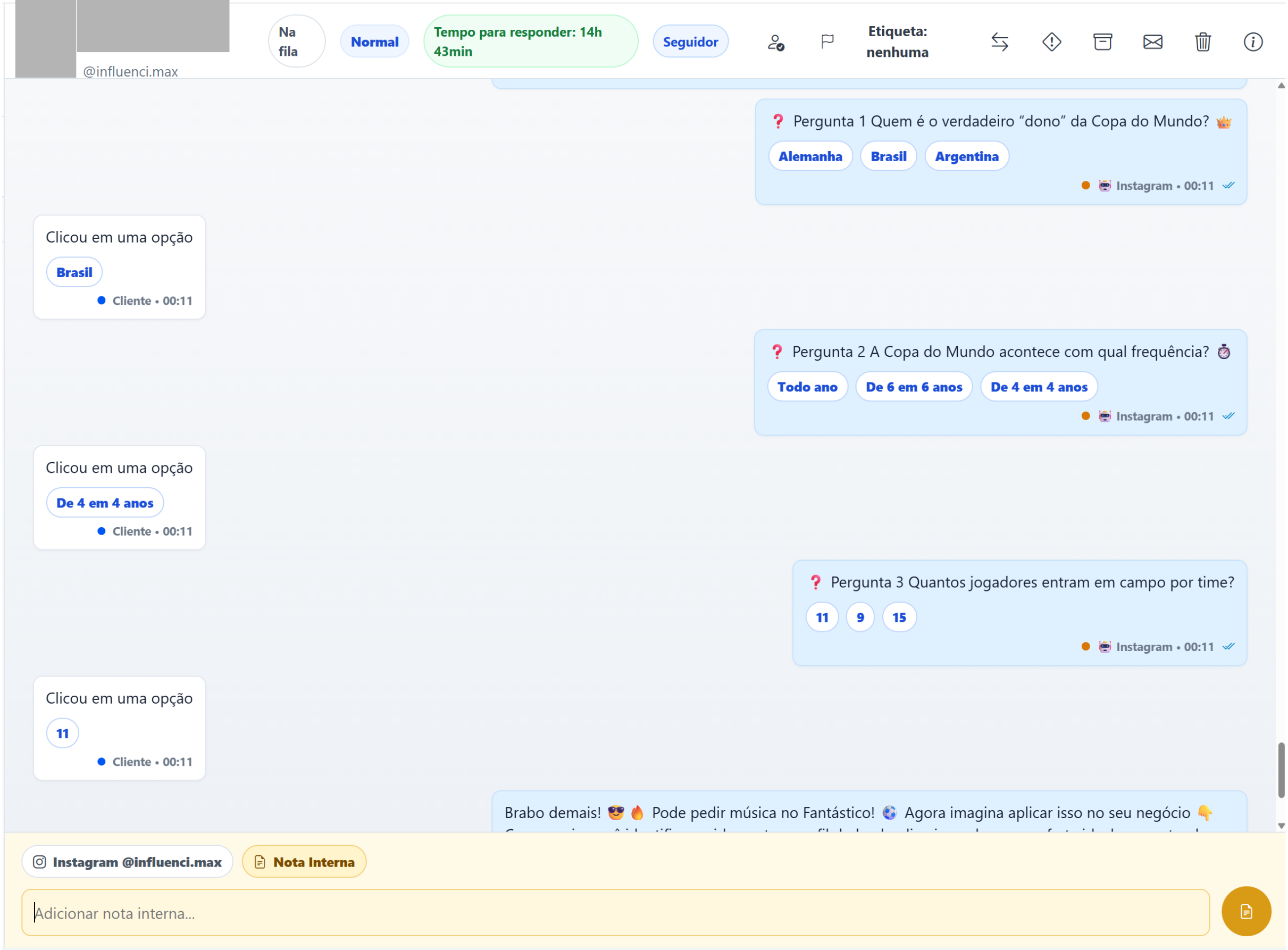
When you access Live Chat, the page displays the elements needed to monitor and manage conversations in a single environment.
The layout makes good use of the available screen area while maintaining navigation between the conversation list and the open chat.
The conversation list and message area have internal scrolling, allowing you to browse the content without reloading or moving the entire page.
Conversation cards are also more compact, allowing more conversations to be displayed in the same area.
2. Identifying new messages
Conversations have visual states that help identify when there are unread messages.
These indicators make it easier to locate contacts that need attention and organize the monitoring of new interactions.
This allows the agent to visually identify which conversations have pending updates.
3. Accepting a conversation
When a conversation is available to be taken, the Accept button allows the agent to start handling it directly.
After accepting the conversation, the agent can use the options available in the interface to continue the service.
The visual emphasis of the button makes the action required to take a conversation easier to identify.
4. Using quick conversation actions
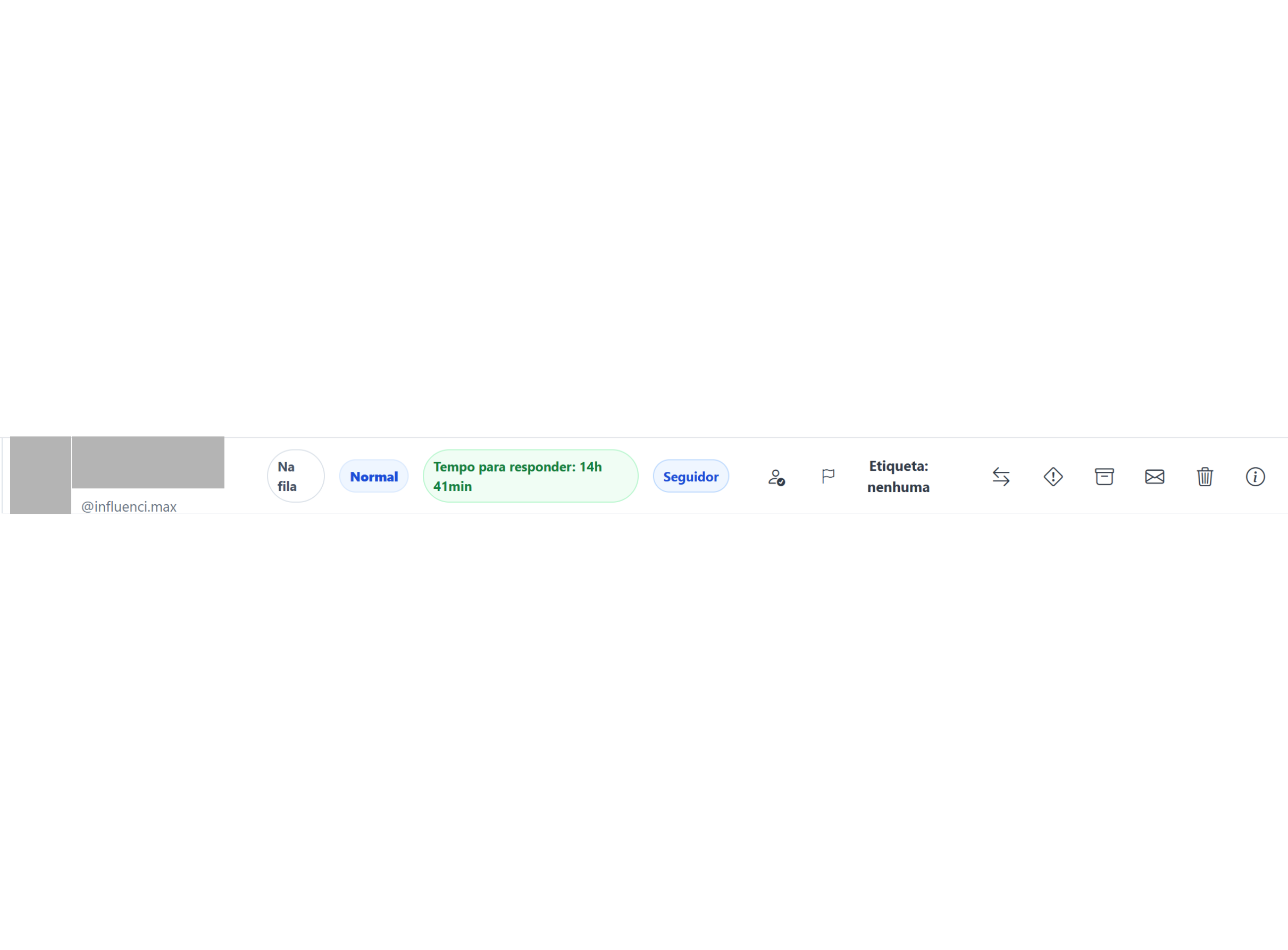
The conversation header brings together important actions to make service management easier without leaving the current screen.
From this area, the agent can access the controls available for that conversation and perform the necessary actions during the service.
This organization reduces the need to navigate between different pages to perform contact-related actions.
5. Organizing conversations with tags and priorities
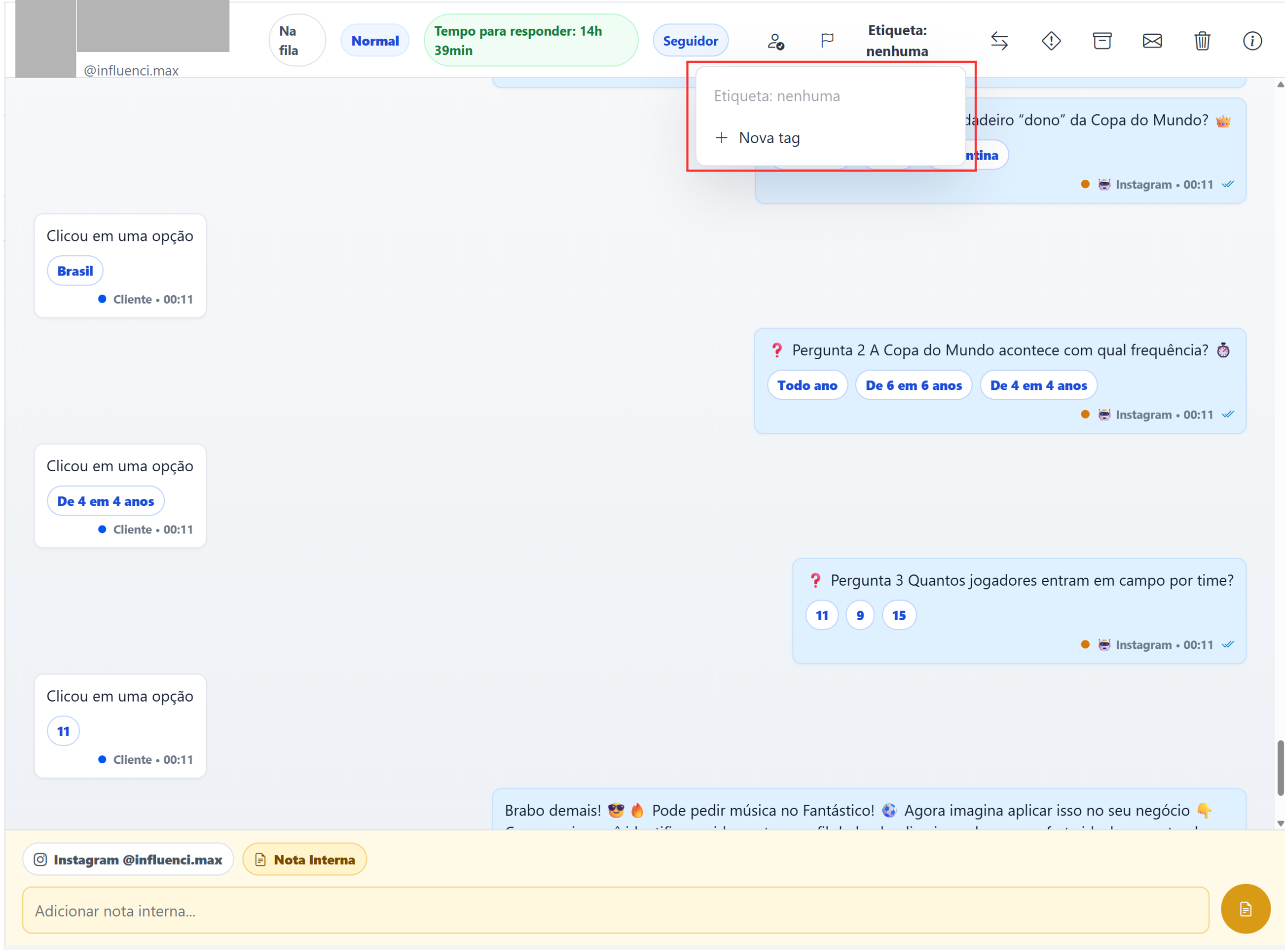
Live Chat allows you to use tags and priorities to help organize conversations.
The menus available in the interface allow services to be classified according to operational needs.
Tags can identify different types of contacts or situations, while priority helps highlight conversations that require greater attention.
6. Creating a new tag
When a classification does not yet exist, the interface provides a modal for creating new tags.
This allows the team to add new organization options without interrupting the service to access another area of the platform.
7. Writing messages
The message field was designed to adapt to the amount of content entered.
As the text grows, the field automatically expands up to 4 lines, making it easier to review the message before sending.
This behavior allows longer messages to be reviewed while keeping the conversation area organized.
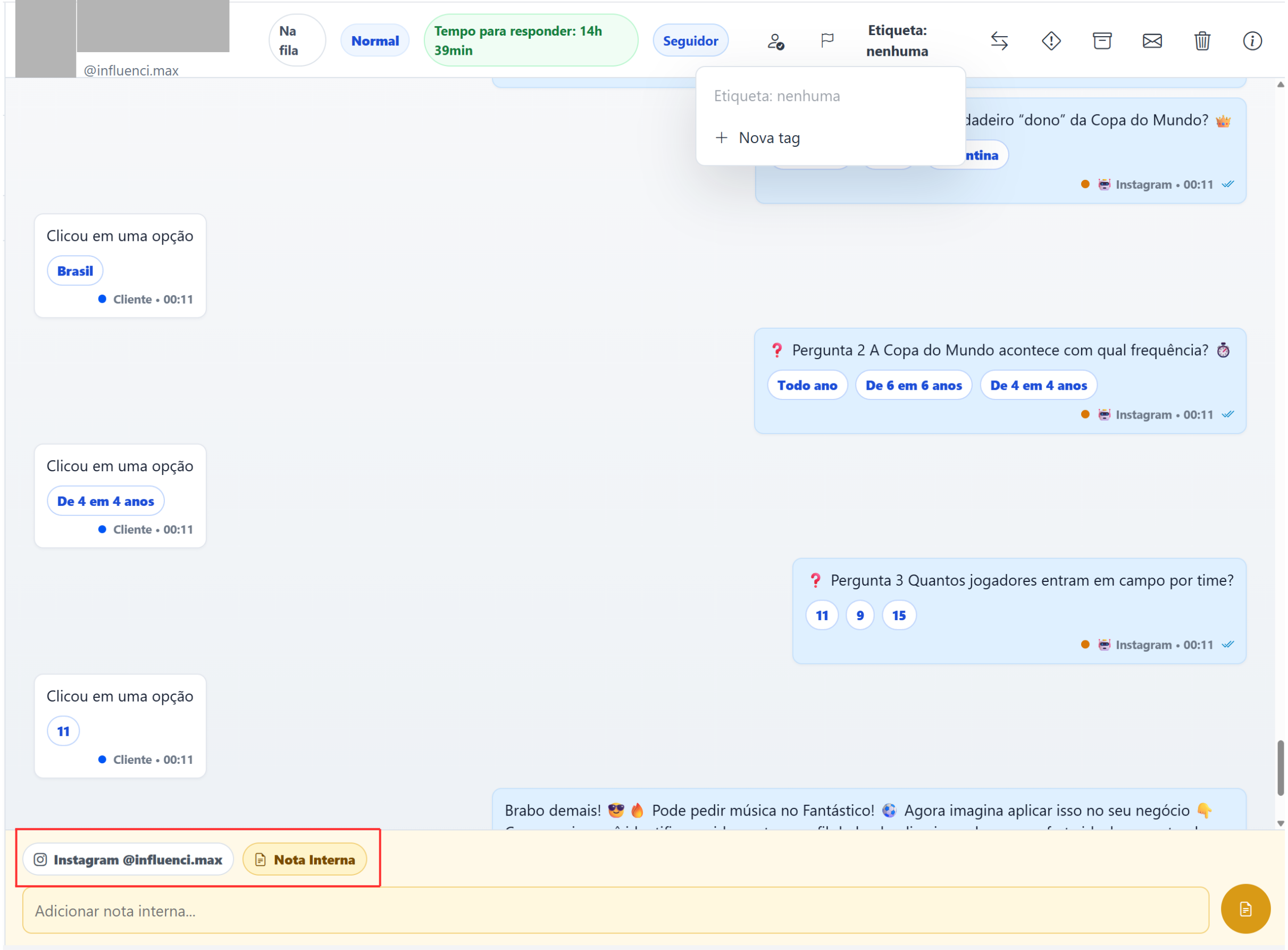
8. Switching between an Instagram message and an Internal Note
In the sending area, the agent can switch between a message intended for the customer on Instagram and an Internal Note.
When sending through Instagram, the content becomes part of the conversation with the customer.
When Internal Note is selected, the content remains available to the team and is not sent to the Instagram user.
The selected sending source is preserved while navigating between conversations and after interface reloads.
This helps maintain the sending mode chosen by the agent during the operation.
9. Using the new message alert
Live Chat can play a sound when a new message is received.
This alert helps the agent notice new interactions even while monitoring other conversations within the platform.
If you do not want to use the sound alert, there is an option to mute it.
Screenshots
The screenshots in this article were distributed throughout the corresponding step-by-step sections to show each feature in the context where it is used.
If something does not work
I cannot identify new messages
Check the conversation list and observe the visual states shown on the cards.
Also confirm that the interface is receiving updates normally.
I cannot accept a conversation
Check whether the conversation is available for service and whether the Accept button is available to your user.
Also verify that your permissions allow this action.
I cannot create a tag
Check whether the tag menu is available and whether your user has the required permissions to use the feature.
My Internal Note was sent to the customer
Before entering content, check which sending source is selected in the composer.
Messages sent through Instagram are intended for the customer, while Internal Notes remain available only to the team.
I cannot hear new message alerts
Check whether the new message sound is muted in the interface.
Expected result
After learning the Live Chat interface features, the agent will be able to monitor Instagram conversations in an organized environment, identify new messages, accept conversations, and access important actions directly from the service center.
It will also be possible to use tags and priorities to organize services, create new tags, write messages in an adaptive field, and switch between messages sent to customers and Internal Notes intended for the team.
With visual states, quick actions, and new message alerts, the interface makes Live Chat operations clearer and more centralized.